2015/10/15

Upgrade! Pavtube Mac Now Support El Capitan

Upgrade! Pavtube Mac Now Support El Capitan 

Pavtube upgrades with support for Mac OS X El Capitan for all its Mac Blu-ray/DVD/Video products, all media converting, playing and editing issues can be solved on El Capitan with Pavtube Mac Products. 

The newly arrived Mac OS X El Capitan featuring the ability to run multiple apps is fantastic. But people are out of luck to entertain themselves with various media files on the new operating system since most Mac video conversion application are not updated with support for El Capitan. To get all those issues fixed up, Pavtube Studio 
Pavtube Sutio has recently updated all its Mac Blu-ray/DVD/Video products with perfect support for Mac’s new operating system - Mac OS X El Capitan. Products that works compatible well with El Capitan including: Pavtube Video Converter for Mac, Pavtube HD Video Converter for Mac, Pavtube MTS/M2TS Converter for Mac, Pavtube MXF Converter for Mac, Pavtube iMixMXF, Pavtube BDMagic for Mac, Pavtube ByteCopy for Mac, Pavtube DVDAid for Mac, Pavtube iMedia Converter for Mac. 
 

Copy/Backup Blu-ray/DVD on El Capitan 
Have problem to copy/backup Blu-ray/DVD disc on Mac OS X El Capitan, never mind, with Pavtube newly upgraded Blu-ray/DVD products, you will get no difficulty to make a full disc copy or the main movie copy of the original 2D/3D Blu-ray/DVD disc on Mac OS X El Capitan. Besides that, the program also enables you to rip/convert Blu-ray/DVD disc to various different file formats on El Capitan platform for playing on iPhone/iPad/iPod, Android phone and tablets, Windows phones or tablets, game consoles, HD media players, streaming to Apple TV/Amazon Fire TV/Roku, etc. 

Play and edit videos on El Capitan 
Play and edit any video files on Mac OS X El Capitan can also be easily achieved with Pavtube upgraded Mac Video Converter applications. You can effectively convert virtually any file formats including AVI, WMV, MP4, MOV, FLV, VOB, MKV, MKV, MTS, M2TS, Tivo, H.265 in SD, HD, 2K, 4K videos to your desired file formats or devices and programs optimized file formats for better viewing. For camera and camcorder users, you will have a fast and fluid workflow on Mac OS X El Capitan with our program by exporting professional video editing codec such as Apple Prores Codec for Final Cut Pro 6/7/x, Apple Intermediate Codec(AIC) for iMovie/Final Cut Express, DNxHD MOV for Avid Media Composer, After Effects CC/Adobe Premiere Pro/Adobe Premiere Elements/Sony Vegas specially optimized file formats, etc. 

Other downloads: 

BDMagic for Mac 
- Pavtube old official address: http://www.pavtube.cn/blu-ray-ripper-mac/ 
- Cnet Download: http://download.cnet.com/Pavtube-BDMagic/3000-7970_4-76177782.html 

ByteCopy for Mac 
- Pavtube old official address: http://www.pavtube.cn/bytecopy-mac/ 
- Cnet Download: http://download.cnet.com/Pavtube-ByteCopy/3000-7970_4-76177783.html 

iMedia Converter for Mac 
- Pavtube old official address: http://www.pavtube.cn/imedia-converter-mac/ 
- Cnet Download: http://download.cnet.com/Pavtube-iMedia-Converter/3000-2194_4-76177788.html 

Video Converter for Mac 
- Pavtube old official address: http://www.pavtube.com/video-converter-mac/ 
- Amazon Store Download: http://www.amazon.com/Pavtube-Video-Converter-Mac-Download/dp/B00QIBK0TQ 
- Cnet Download: http://download.cnet.com/Pavtube-Video-Converter/3000-2194_4-76179460.html 

HD Video Converter for Mac 
- Pavtube old official address: http://www.pavtube.com/hd-video-converter-mac/ 
- Amazon Store Download: http://www.amazon.com/Pavtube-Video-Converter-Mac-Download/dp/B00QI9GNZS 
- AppStore Download: https://itunes.apple.com/de/app/pavtube-hd-video-converter/id502792488?mt=12 
- Cnet Download: http://download.cnet.com/Pavtube-HD-Video-Converter/3000-2194_4-76177786.html 

MTS/M2TS Converter for Mac 
- Pavtube old official address: http://www.pavtube.com/mts-converter-mac/ 
- Amazon Download: http://www.amazon.com/Pavtube-MTS-M2TS-Converter-Download/dp/B00QIE3U0Y 
- Cnet Download: http://download.cnet.com/Pavtube-MTS-M2TS-Converter/3000-2194_4-76177029.html 

MXF Converter for Mac 
- Pavtube old official address: http://www.pavtube.com/mxf-converter-mac/ 
- AppStore Download: https://itunes.apple.com/us/app/pavtube-mxf-converter/id502807634?mt=12 
- Amazon Download: http://www.amazon.com/Pavtube-MXF-Converter-Mac-Download/dp/B00QID8K28 
- Cnet Download: http://download.cnet.com/Pavtube-MXF-Converter/3000-2194_4-76177789.html 

iMixMXF 
- Pavtube old official address: http://www.pavtube.com/imixmxf-mac/ 
- Amazon Download: http://www.amazon.com/Pavtube-Studio-iMixMXF-Download/dp/B00QI7MY4Y 
- Cnet Download: http://download.cnet.com/Pavtube-iMixMXF/3000-2194_4-76171460.html 

Further Reading: 
Best Way to Edit Video Files on Mac OS X El Capitan 
Convert Videos on Mac OS X El Capitan with Top Video Converter 
Lossless Backup Blu-ray to MKV on Mac OS X El Capitan 
Convert MXF Files on Mac OS X El Capitan 
3D Blu-ray Main Movie Backup Solution for Mac OS X El Capitan 
Play 4K Videos on Mac OS X El Capitan 


2015/10/13

Best 3 DVD to Samsung Galaxy Note 4 Rippers Review


Galaxy Note 4 is set to become Samsung's true flagship phone with a larger 5.7 inch 2560 x 1440 pixels QHD screen, and enhanced practical features covered. As expected, the Samsung Galaxy Note 4 is a beast, many people have bought this new smartphone and copied a lot of videos onto it for watching on the go. But, can Galaxy Note 4 play DVD movies? If we can copy DVD movies onto Galaxy Note 4, that will be great. 


So when we want to watch DVD movies on Galaxy Note 4, we need to convert DVD movies to the video format that Galaxy Note 4 supported. For example, .MP4 is one of Galaxy Note 4 supported video formats. There has lots of DVD Ripper there will also, doubtless, be some reviews of best 3/5 DVD to Galaxy Note 4 rippers due to perfectly playing for 2K/4K HD DVD movies playback. We do a test of Best DVD Rippers for new Samsung Galaxy Note 4 to see which one would come out on top to meet your need of "how to convert DVD to Galaxy Note 4". 

Top 3 DVD to Samsung Galaxy Note 4 Rippers 

NO. 1. Pavtube DVDAid – Excellent 


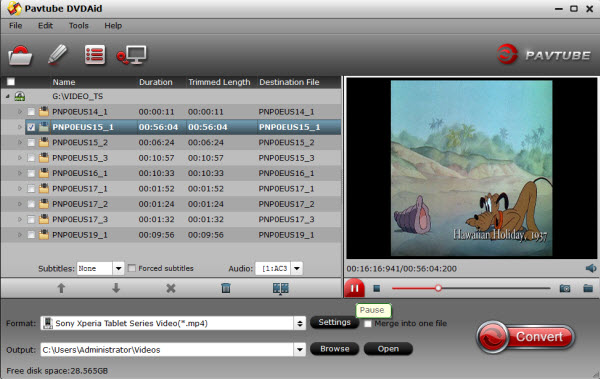
Pavtube DVDAid is regarded as the best DVD ripping software on the market that provides movie lovers, children and people in any group with the easiest and fastest way to rip and convert DVD movies to MP4/AVI/MKV/WMV and many other video and audio formats with high quality for Galaxy Note 4. It lets you enjoy DVD movies on any portable device like iPhone 6, iPhone 6 Plus, iPad Mini 3, iPad Air 2, 2nd Gen Nexus 7, Asus Fonepad 7,Sony Xperia Z1, Surface 3, Surface Pro 3 and Surface RT/Pro, Kindle Fire HDX, etc. Surprisingly it adds H.265/HEVC as output video format in order to satisfy users who ask for high video quality. ( Lists of Best DVD Copying and DVD Converting Software) 

Moreover, Pavtube DVDAid makes 1:1 copy of original DVD Disc without quality loss with all audio streams, subtitle tracks, extras, etc. For the short time it takes to convert the movie with the help of CUDA/AMD GPU acceleration, and you will get hours of enjoyments. It’s simple to use and well worth the investment. 

Most important: 

It can support latest DVD, features with adding *.srt and *.ass subtitle, also help you direct copy titles from DVDs. Below is two users’ reviews: 

1.Your profile works just great and the picture is clear, well as always you guys are fantastic with your products and please work on being able to burn to DVD once the user has made their conversation that is something that your competitors can not do directly and that would be awesome and I would love to be your beta tester. 

2. It is easy to use for editing and conversion and makes great quality copies of my DVDs. I really like that I can turn up the volume on my DVDs. It is a great feature! I also like that it gives me a lot of options when choosing how to copy and convert my DVDs. I tried some other DVD software and researched others and this seems to be the best! I am glad that I bought this software! 

Trial Download: 

1. Pavtube DVDAid for Windows (Requires Windows XP/2003/Vista/Windows 7/Windows 8/Windows 8.1/Windows 10) 
2. Pavtube DVDAid for Mac (Requires Mac OS X 10.10 Yosemite, 10.9 Mavericks, 10.8 Mountain Lion, 10.7 Lion, Snow Leopard 10.6) 

Learn >> Convert DVD VOB to Galaxy Note 4 | Blu-ray on Galaxy Note 4 | 3D Blu-ray with Gear VR on Note 4... 

NO. 2. HandBrake 

Handbrake is ranked as the best free DVD ripper for Samsung Galaxy Note 4 for being open source, GPL-licensed, multithreaded and multiplatform, which has been gaining in popularity for years. So is HandBrake the top free DVD to Samsung Galaxy Note 4 ripper? 

HandBrake has presets for iPhone, iPad, iPod, Apple TV and general Android mobiles, which makes it a free DVD to Samsung Galaxy Note 4 ripper. But it does little to help convert DVD to multiple video formats other than MPEG-4, which is always outputed in .m4v by default. Also, in our experience this well-reputed free DVD ripper, for Galaxy Note 4, does nothing to help rip CSS protected DVD. UOP, Sony ARccOS, Disney X-project DRM protected DVD to Galaxy Note 4 free ripping cannot be achieved either. HandBrake seems more likely to be a best free DVD ripper for Galaxy Note 4 to rip unprotected DVDs, although for average users it might be a little bit complicated to handle. 

NO.3. DVD Shrink 

DVD Shrink, included in this best three DVD to Samsung Galaxy Note 4 rippers list, is an easy-to-use DVD transcoder featureing a DeCSS decryption algorithm for only Windows users to free backup DVD video files. 

However, the final versions 3.2.0.15 was an update back in 2004. Windows Vista and later OS may have issues running DVD Shrink. This free DVD ripper for Samsung Galaxy Note 4 might have problems for supporting newer DVD discs and DVD copy protections. Despite of that, DVD Shrink is still favored by those who want to copy and compress DVD files, including VIDEO_TS folder, ISO image, etc. It has been proven to be able to compress video to as little as 39% of its original size, depending on the aspect ratio of the original DVD. 

In Conclusion: 

Pavtube DVDAid is proved to be the best DVD Ripper for Android tablet/phone. It ranks top on the DVD ripping application list for almost every aspect except for interface design. 

Anyhow, hope this top DVD Ripper Reviews can help you fast choose an easy-to-use and yet professional DVD ripping tool. Now get the best DVD Ripper Program for You! 

More 


Cast DVD Movies to Google Chromecast 2 HDMI Dongle 
How to Copy Blu-ray to Wireless HDD for Streaming 
DropBox and HD Video/Movie Files Are Not A Good Fit 
How to Retrieve Lost Contacts on iPhone 6S Without Backups? 
Play HD Videos/MKV/AVI/AVCHD/VOB etc on Galaxy Tab S2 
Enjoy DVD & ISO/IFO image files to Kindle Fire HDX 
Watch MKV, AVI, FLV, M2TS(Blu-ray), Video_TS to Apple TV 3 
Can Samsung Smart LED TV play MPEG/MPG video file? 

Src 

Best 3 DVD to Samsung Galaxy Note 4 Rippers Review

2015/10/11

Play HD Videos/MKV/AVI/AVCHD/VOB etc on Galaxy Tab S2


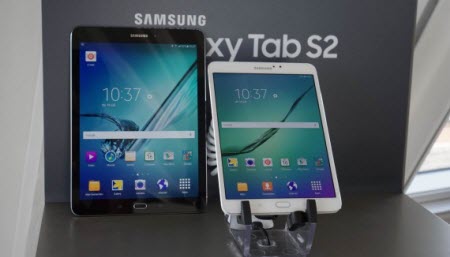
Samsung Galaxy Tab S2, by far the most frivolous tablet has been published recently, Galaxy Tab S2 8.0 with a resolution of 1536 x 2048 8-inch Super AMOLED display, while Galaxy Tab S2 9.7 the configuration is a resolution of 1536 x 2048 9.7-inch Super AMOLED, you can play your downloaded movies on this high-definition screen. Both equipped with the same Exynos 5433 processor, 3GB RAM, 32GB / 64GB optional internal storage, expandable up to 128GB of support MicroSD card slot. So, there is no pressure transfer some HD movies to Galaxy Tab S2 for playing on spare time. 


Hot Search: Galaxy S6 VS Galaxy S5 | HD Videos to VR One | HD Videos to Transformer Book T100 | HD videos on Windows 8.1 | 

If you have got a Galaxy Tab S2 on your hand, would you like to watch HD movies on it for its HD display? Since you’re here, you probably know by now that the device, has limited video format support, usually just supporting MP4, AVI, 3GP and so on few video formats, a big inconvenience for users. So then how do you convert video for the Samsung, so it will play properly? 

According to Samsung Galaxy Tab S2 specification, Galaxy Tab S2 supports MPEG4, H.263, H.264, DivX, XviD and WMV videos. So, In order to successfully play all kinds of video files on Samsung Galaxy Tab S2, a recommend solution is to convert MP4, MKV DTS, AVI, WMV, MOV, WTV, MPEG, DivX to Samsung Galaxy Tab S2 supported MP4. This article will guide you with a step-by-step to convert video to MP4 to successfully play on Samsung Galaxy Tab S2. 

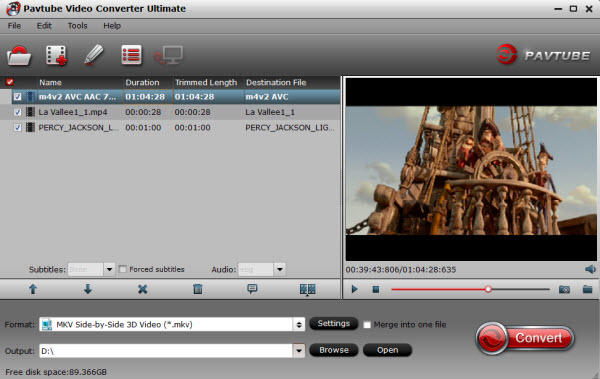
Pavtube Video Converter Ultimate enables you to convert any HD videos to almost all Android devices (Samsung Galaxy Tab S2, Galaxy Note 4, Galaxy S6, HTC One etc.) at a very high speed and delivers possible highest quality. The editing tools can help you crop, trim, merge videos and add subtitles for videos. Also, you can customize audio/video parameters, bit rate, frame rate, resolution etc. Here is review. 

As an H.265/HEVC decoder, it can also convert H.265 video to Galaxy Tab S2 supported format for playback on Windows 10. For Mac users, turn to iMedia Converter for Mac. 

Steps to Convert HD Videos/MKV/AVI/AVCHD/VOB etc to Galaxy Tab S2 


Other Download: 

– Pavtube old official address:http://www.pavtube.cn/blu-ray-video-converter-ultimate/ 
– Cnet Download: http://download.cnet.com/Pavtube-Video-Converter-Ultimate/3000-2194_4-75938564.html 

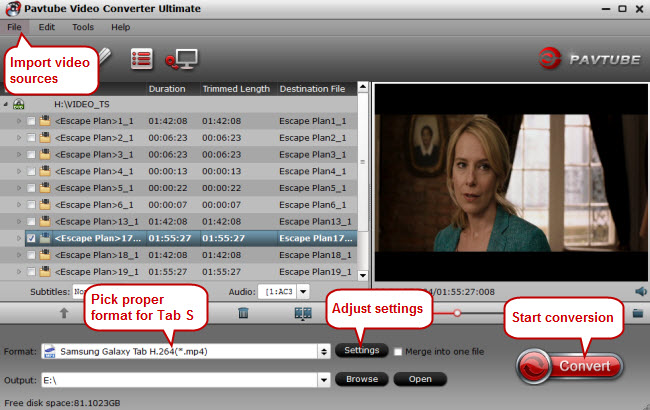
Step 1: After the successful installation, click “Load file(s)” or “Add video” to load video file you want to convert in your PC into the program. It supports batch conversion, you can you can add movies in different formats like HD videos at one time. 


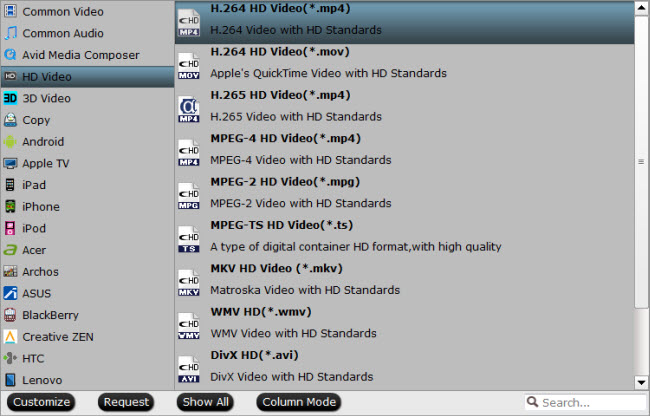
Step 2: When you click the ‘Format’ bar to come to the output list, as we mentioned above, we can suggest you to choose the ‘HD Video’>>’H.264 HD Video (*.mp4)’ as the best output one. For others? You can drop down the list and find more. And the video/audio parameters can be reset in “Settings” to achieve a satisfying playback in for Galaxy Tab S2. 


Step 3: Hit the big button “Convert” to get the cork started. If you follow several steps mentioned above, after easily transferring files to Galaxy Tab S2, we can enjoy the HD videos nicely with high definition. Would you like to have a try? 

More 

How to stream supported and unsupported video formats through Chromecast? 
Get all my movie collection onto Android Pads via Flash Drive 
iPod FLAC Converter – Convert FLAC Files to MP3 on iPod Touch 6 
Can I put the iTunes M4V videos on Galaxy Tab S2 for playing? 
Watch DRM-protected movies from Digital Copy & iTunes on Kindle Fire HD 8.9 
Copy Blu-ray to ATV 3 M4V/iTunes MP4 format for streaming 
Copy Blu-ray to Play on Samsung UHD TV via HDD and Flash Drive 
Simple way to copy ISO files to USB for Sony Bravia HDTV playback 

Src 
Play HD Videos/MKV/AVI/AVCHD/VOB etc on Galaxy Tab S2 

2015/10/9

Can I put the iTunes M4V videos on Galaxy Tab S2 for playing?


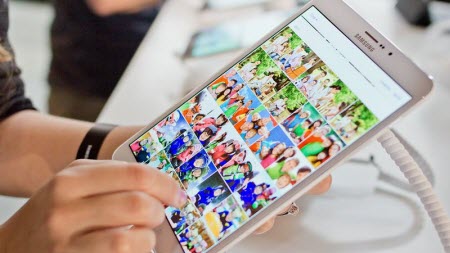
Samsung Galaxy Tab S2 comes in two different sizes, a larger 9.7-inch tab and an 8-inch one. On the front both the 8-inch and 9.7-inch slates boast Super AMOLED displays with resolutions of 1536 x 2048 pixels. That equals 320ppi on the 8-inch model and it looks great – it isn’t the best pixel density we’ve seen on a tablet though. With their large HD screen display, it might be great experience that if you could enjoy your movies from iTunes on these hot Android deivces. 


However, Samsung Galaxy Tab S2 doesn’t suppprt M4V format video, and iTunes M4V videos are protected by DRM copy protection. The easiest and quickest way is remove DRM protection of M4V movies, then convert M4V to Galaxy Tab S2 format for watching. Here,Pavtube ChewTune is the Top Pavtube M4V to Galaxy Tab S2 Converter which can easily remove iTunes DRM protection and then import the non-DRM files to Galaxy Tab S2 for playback. 

This is an intuitive DRM remover and video converter which is well compatible with Windows 10 to help you legally remove DRM protection from iTunes protected music and videos and convert iTunes to Galaxy Tab S2 if the formats are not supported by Galaxy Tab S2. Besides iTunes, it can also remove DRM from Windows Media Center, Zune Marketplace, BBC iplayer WMV, Amazon Video on Demand, Blockbuster, etc. Furthermore, you can use it to convert between all popular video and audio formats, such as AVI, WMV, MKV, MP4, MOV, WMA, MP3, etc. Learn why choose this? 

Hot Search: iTunes to Galaxy Tab Pro | iTunes to Galaxy S6/S6 Edge | iTunes to Gear VR |iTunes to Nabi S2 | 

Note: If you’re using a Mac, please turn to the equivalent Mac version iTunes to Galaxy Tab S2 Converter for Mac. 

I’m sure you will be fond of this article, in which you will learn the easy way to remove the DRM protection from iTunes contents for freely playback on Samsung Galaxy Tab S2. 

Free Download this Top M4V to Galaxy Tab S2 Removal Tool:


How to Convert and Transfer iTunes videos to Galaxy Tab S2 Tablet 

The quick start guide below uses ChewTune Windows screenshots. The way to transfer iTunes movies to Galaxy Tab S2 tablet on Mac is almost the same. Just make sure you get the right version according to your computer operating system. 

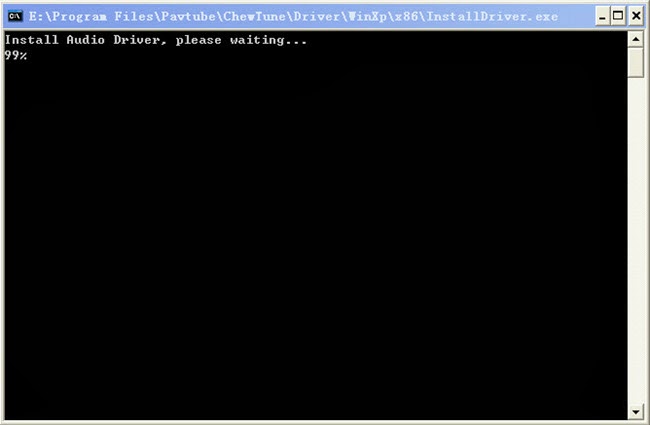
At first, A command window will pop up during the installation to install specific audio driver, do not shut down and let it running until the installation completed. 


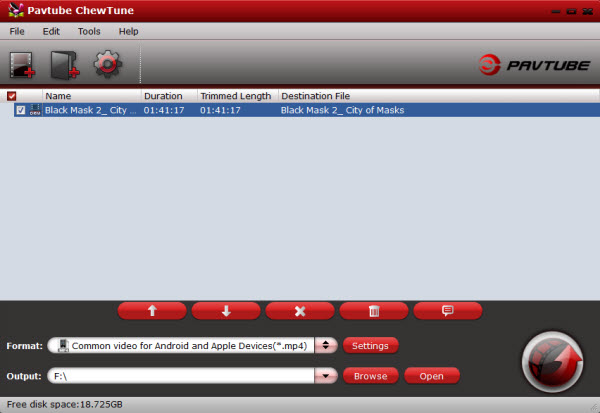
Step 1. Add iTunes purchased videos 

Launch the Galaxy Tab S2 Tablet DRM removal and click the “Add” button or drag and drop to add the iTunes movies you want to play on Galaxy Tab S2 to the program. Besides, you can also add iTunes M4P music files and video/audio bought from Amazon, BBC iPlayer, Zune, Nokia Music Store, etc. for converting. 


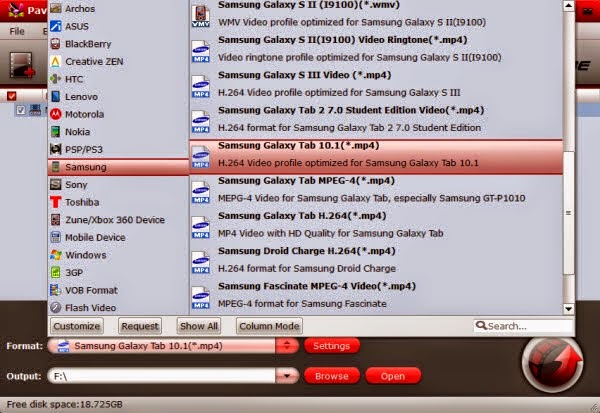
Step 2. Select output format for Tab s2 tablets. 

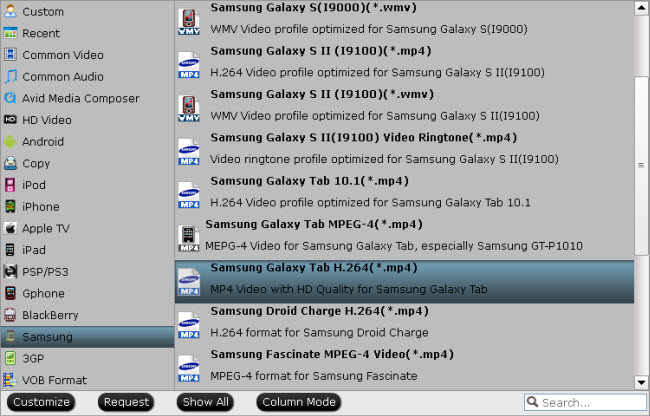
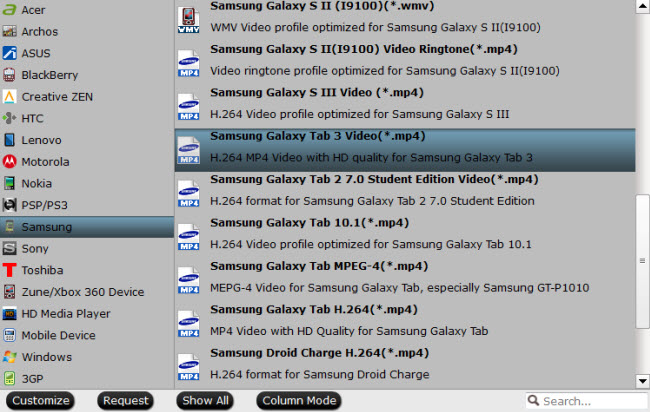
From “Format” drop-down list, choose “Samsung > Samsung Galaxy Tab 10.1(*.mp4)” as the output format for Galaxy Tab S2. 


Samsung Galaxy Tab S2 supported formats 

-Video formats: MP4/H.264/WMV 

-Audio formats: MP3/WAV/AAC+/WMA/FLAC 

Step 3. If you like, you can enter “Settings” option to adjust profile parameters, such as video codec, bitrate, frame rate, size, etc to get better video and audio quality on Galaxy Tab 4. 

Step 4. Click the big “Convert” button on software main UI to start iTunes videos and music to Galaxy Tab 4 conversion. This converter will activate your media player automatically and start to play this video. The player windows cannot be removed or closed. 

Note: The system volume could turn off temporally during this period; no worries, do not touch it to get perfect DRM removed video. 

After the conversion, click “Open output folder” to quick locate the converted video. Andtransfer the converted videos to Galaxy Tab S2 for smooth playback. 


More 

Play iTunes Movies/Episodes on Samsung Smart TV via Chromecast 
Backup Blu-ray/DVD to MKV/MP4 to Synology NAS 
How to Share iTunes Movies to Others by OneDrive? 
iPod FLAC Converter – Convert FLAC Files to MP3 on iPod Touch 6 
Transfer DVD films to Samsung Galaxy Tab S2 for enjoyment 
How to Rip and Put DVDs on Kindle Fire HD 
Convert Hauppuage PVR Video Files for Using with Apple TV 3 
How to Play MKV Files on Samsung Smart TV? 


Src 
Enjoy 1080p/720p HD Videos for Play on iPod Touch 6 

2015/10/8

Transfer DVD films to Samsung Galaxy Tab S2 for enjoyment

Transfer DVD films to Samsung Galaxy Tab S2 for enjoyment

Samsung Galaxy Tab S2s share a lot of similarities with the iPad Air 2 and Mini 3: all have the same 2048×1536 display resolution. The 9.7-inch model with Android Lollipop 5.0.2 is not only a fantastic looking device, it’s also the most powerful tablet that Samsung has ever built. So, there is no pressure transfer some DVD movies to Galaxy Tab S2 for playing on spare time. Here I will throw a quick tutorial up on how to rip and copy DVD movies to Galaxy Tab S2 while keeping the best video quality.

Hot Search: Galaxy S6 VS Galaxy S5 | DVD to Galaxy A5 | DVD to Galaxy Note 4 | HD Videos on Galaxy Tab S2 | iTunes on Galaxy Tab S2 |

But, if you don’t rip and convert DVD to Galaxy Tab S2 playback format, You can not play DVD movie on your Tab. Because first your backup movies from the DVD is too big to transfer the files into your Galaxy Tab S2, next Galaxy Tab S2 doesn’t support DVD files playback directly. So for watching DVD movies on Samsung Galaxy Tab S2, you have to convert DVD to Galaxy Tab S2 supported formats. First, the most important piece of the equation is that you have a DVD Ripper in hand.

Most of you are likely familiar with the excellent Handbrake for ripping standard Def DVDs, but it still cannot yet protected DVD discs, so you’ll need to get an alternative DVD ripping tool. Here , you need a Galaxy Tab S2 DVD Ripper to rip DVD to Galaxy Tab S2 best playback formats. Pavtube BDMagic will be the best choice, it can help you convert DVD to a format that Galaxy Tab S2 supports. At the same time, DVD to Galaxy Tab S2 Converter not only can rip and convert DVD to any formats, but also can help you convert Blu-ray to other HD formats for your Tab S2 tablet, including MKV, AVI, MTS, WMV, etc. Read the review.

Note: If you are on Mac, turn to Pavtube BDMagic for Mac for ripping DVD to Galaxy Tab S2 on Mac (El Capitan included).


Other Download:

- Pavtube old official address: http://www.pavtube.cn/blu-ray-ripper/
- Cnet Download: http://download.cnet.com/Pavtube-BDMagic/3000-7970_4-75922877.html

How to Convert DVD to Galaxy Tab S2 with Suitable format

Step 1: Load DVD files

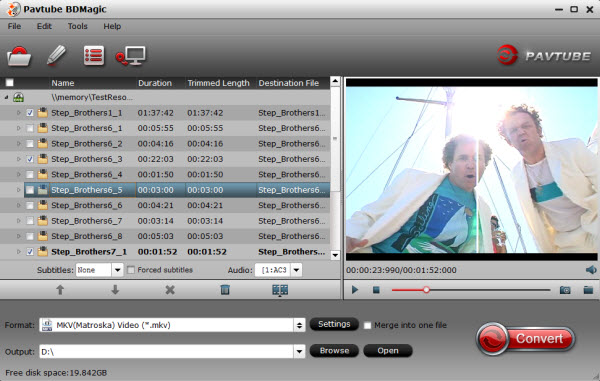
Insert DVD disc into BD Rom. Install and run this best Galaxy Tab S2 DVD Converter on your computer. Click “Load Disc” to load your files. You can just simply to drag and drop your backuped files into this program.


Step 2: Select suitable format

Pavtube BDMagic offers many optimized video format for different devices. Just click “Format” bar to find “Samsung” profile. Here, you can choose “Samsung Galaxy Tab H.264 (*.mp4)” format.


Note: According to Samsung Galaxy Tab S2 specification, Galaxy Tab S2 supports MPEG4, H.263, H.264, DivX, XviD and WMV videos.

Step 3: Customize output settings

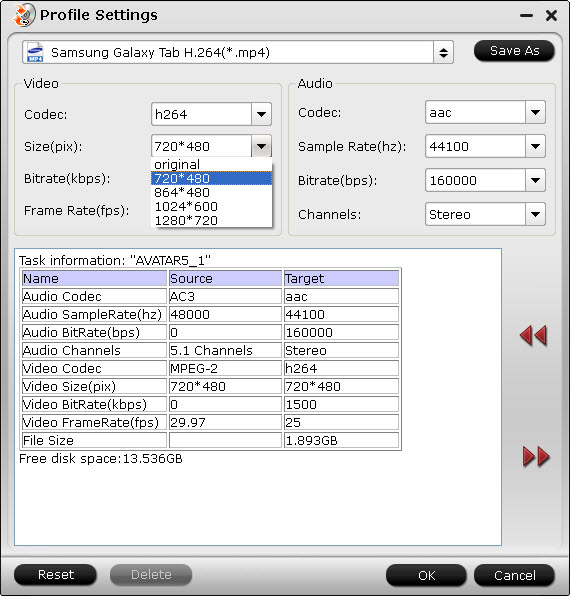
Besides, click “Settings” button on the interface, you will be able to check and adjust the video and audio parameters like bitrate, size, channels, etc. Just do it when you need.


Step 4: Start Converting DVD

Click “Convert” button to start DVD to Galaxy Tab S2 conversion. DVD to Galaxy Tab S2 Converter, which allows you to convert DVD up to 6X faster than other converters on the market.

Step 5: Transfer DVD to Galaxy Tab S2

After DVD to Galaxy Tab S2 conversion, click “Open Folder” button to locate the converted video files. You can transfer DVD movies to Galaxy Tab S2 via USB cable after connect Galaxy Tab S2 to your computer.

Now, you can imagine how wonderful it is to watch your favorite DVD movies on Galaxy Tab S2 on spare time for freely.

Additional Tips:

If you are looking for a powerful integrated tool to convert videos, Blu-ray movies and DVDs to your Samsung Galaxy Tab S2, Galaxy Tab 2, Galaxy Tab 3, Asus Transformer Prime, Transformer Pad Infinity TF700, Google Nexus 9, Google Nexus 10/7, Kindle Fire HDX, Galaxy S6/A8, Nook HD, etc at the same saving time and effort, the all-in-one Pavtube Video Converter Ultimate program will be a nice choice for you. If you are running a Mac OS X computer, iMedia Converter for Mac is the alternative. 

2015/10/7

Samsung Galaxy Tab S2 8.0 and 9.7 Best Video Formats

Samsung Galaxy Tab S2 8.0 and 9.7 Best Video Formats 

Samsung has just announced the Galaxy Tab S2, which is the successor to the Galaxy Tab S. The most notable change between the original Tab S and Tab S2 line is the sizes.The original Tab S tablets are 8.4- and 10.5-inch, whereas the Tab S2 line is 8- and 9.7-inch. Playing movies and videos on Galaxy Tab S2 with 2048x1536 resolution is absolutely stunning! If you are unaware of how to encode video to Galaxy Tab S2, play MKV, AVI, VOB, MOV and H.265 encoded videos on Galaxy Tab S2, read this guide to learn how. 

Following this procedure will save you lots of time and prevent video quality degradation if you need play HD Video files in mp4 format for playback through Galaxy Tab S2 8.0 and 9.7 via Windows 10 or Mac El Capitan. 

Learn Best Video/Audio formats for Samsung users: Galaxy S6/S6 Edge | Galaxy Tab S 10.5 and 8.4 | Galaxy S5, S4, S3, S2 | Galaxy Tab 4 | 

About Galaxy Tab S2 8.0 and 9.7 Tablet 

Galaxy Tab S2 8.0 is powered by an octa-core processor (quad 1.9GHz + quad 1.3GHz), and sports an 8-inch Super AMOLED display with 1536 x 2048 pixels resolution. It comes with 3GB RAM and 32GB/64GB expandable internal storage options, and packs in a 4000mAh battery. 

Galaxy Tab S2 9.7 sports a 9.7-inch Super AMOLED display, packs in a 5870mAh battery, and weighs in at 389g. Rest of its specifications are same as that of the Galaxy Tab S2 8.0. Both variants are available in Wi-Fi only or Wi-Fi and LTE configurations, come with a touch-enabled Fingerprint Scanner, and offer Multitasking. 

Galaxy Tab S2 8.0 and 9.7 Supported Formats 

* Galaxy Tab S2 Video Formats Supported: 

H.263, H.264(AVC), MPEG4, VC-1, WMV7, WMV8, VP8 
Recording: QHD (2560x1440) @30 fps 
Playback: UHD (3840x2160) @ 30fps 

* Galaxy Tab S2 Audio Formats Supported: 

MP3, AAC, AAC+, eAAC+, WMA, Vorbis, FLAC 

Among the formats above, MP4 is highly recommended for its easy availability, high compatibility, great compression rate and especially amazing video quality. 

How to Make Your Videos Most Suitable for Playing on Galaxy Tab S2 8.0 and 9.7 

Best format for playback, MP4 container, h.264 codec, 720*480 resolution, 2000 kbps bit rate, 24 fps Frame Rate from Pavutbe Video Converter Ultimate 

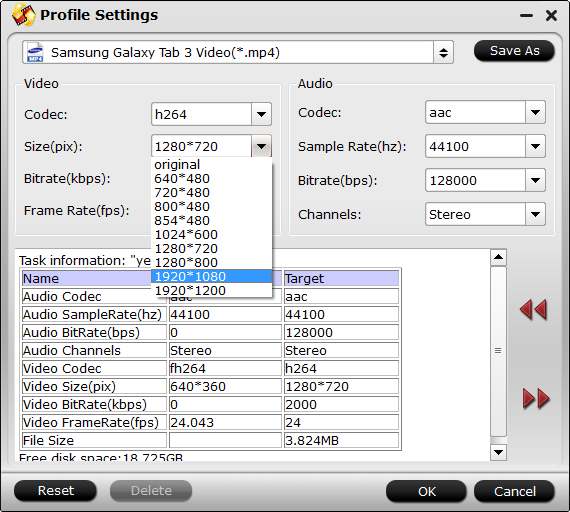
High quality HD format for playback, MP4 container, h.264 codec, 1280*800 resolution, 2500 kbps bit rate, 24 fps Frame Rate. 


How to convert AVI/M2TS/MPG/FLV/MOV/WMV to play on Galaxy Tab S2 8.0 and 9.7? 

Samsung supports only videos in limited formats as above, which means that videos in other formats like M2TS, MTS, TS, AVCHD, MOV, QT, F4V, VOB etc and even Blu-ray, DVD can't be played on Samsung Galaxy Tab S directly. To play those videos on Samsung Galaxy Tab S, you need to convert video to Samsung Galaxy Tab S first. 

Here you can go to download and install a qualified Galaxy Tab S video converter- Pavtube Video Converter Ultimate which is recommended to achieve it effortlessly. Easy-to-use workflow, superfast speed with the help of CUDA acceleration, multiple input and output videos with high quality as well as powerful editing function. If you are stilling annoyed about troubles in playing Blu-ray, DVD and MKV, AVI, VOB, Tivo, MPG, WMV, FLV videos with Galaxy Tab S2 8.0 and 9.7, download this software to wipe it out. Here is review. 


Other Download: 

- Pavtube old official address: http://www.pavtube.cn/blu-ray-video-converter-ultimate/ 
- Cnet Download: http://download.cnet.com/Pavtube-Video-Converter-Ultimate/3000-2194_4-75938564.html 

Step-by-step Guide of Converting Blu-ray, DVD and MKV, AVI, VOB, Tivo, MPG, WMV, FLV videos to Galaxy Tab S2 8.0 and 9.7 

Step 1. Install and run the Pavtube Video Converter Ultimate, click the top left “Load files” to load Blu-ray/DVD from disc drive, folder or ISO/IFO; or load your video files like MKV, AVI, VOB, Tivo, WMV, MTS, MXF, MOV, TOD, MOD, 3GP, FLV, F4V, M4V, etc. by clicking the second icon “Add video”. 

Note that your computer needs an external BD drive for loading Blu-ray/DVD movie. 


Step 2. MP4 format is the best format for Galaxy Tab S2 8.0 and 9.7. Click "Format" menu and go through the dropdown list, you are recommended to choose the "Samsung -> Samsung Galaxy Tab 3 Video(*.mp4)". It is also fit for Galaxy Tab S2 8.0 and 9.7. 


Tips: Click "Settings" button to adjust video and audio parameters like bitrate, size, audio channels, etc to meet your requirement, please set them as the parameters mentioned above. 

Step 3. Convert Blu-ray/DVD movies and Various Videos to Galaxy Tab S2 8.0 and 9.7. 

Hit the big "Convert" button to start converting any videos for Galaxy Tab S2 8.0 and 9.7 with the help of technology of CUDA acceleration, you can get 6X faster conversion speed. If you do not remember the location of generated files, click "Open" button to find it quickly. 

Step 4. The Galaxy Tab S2 8.0 and 9.7 acts like an external hard drive. You just need to drag & drop (or copy/paste) the video from the PC/Mac to Galaxy Tab S directly. 

Now, you have known the best way to convert BD/DVD, Videos to best supported video format for Galaxy Tab S2 8.0 and 9.7, just download this Galaxy Tab S movie converter, and import your videos into this program to take a try, hope this tool can help you! 

Another app: If you want to watch HD videos and iTunes movies on Galaxy Tab S, you can try the video format settings for Galaxy Tab S2 8.0 and 9.7 above, just try the bundled software Video Converter Ultimate($65) + ChewTune($29) = Only $74.9, Save $19.1, and easily convert DRM and other common video to Galaxy Tab S2 8.0 and 9.7 for playback. 

More 

Make perfect copies of my BD/DVD library to hard drive with lossless mkv format 
Watch 3D Blu-ray on Smart TV without 3D Blu-ray Player 
How to Upload 4K Video to YouTube With Suitable Format and Parameters? 
Extract Audio from DVD as AC3 5.1 Channel Audio File 
Top 8 Best 8mm Tap Converters/Super 8 Video Converters 
Top 10 Best WinX DVD Video Software Alternatives 
Convert TiVo to Apple ProRes MOV for editing on Mac and burn them to DVD 
Play 3D Movies on Gear VR via Oculus Cinema on Mac 

Src 

Samsung Galaxy Tab S2 8.0 and 9.7 Best Video Formats 

2015/10/5

Put and Play Blu-ray ISO movies on Samsung Galaxy Note Pro 12.2

 This article is mainly talking about how to put and play Blu-ray ISO movies on Samsung Galaxy Note Pro 12.2 by ripping BD ISO to Galaxy Note Pro 12.2 supported format. 

"I have several Blu-ray ISO image files which are not compatible with my new Samsung Galaxy Note Pro 12.2. I want convert them to Galaxy Note Pro 12.2 friendly format. What's the best Blu-ray Ripper to convert Blu-rays ISO files to playon Galaxy Note Pro 12.2? Any suggestion?" 


Samsung is betting on such a high resolution display, which not many devices with this screen diagonal are able to offer yet. At 2560x1600, the 12.2" panel, Galaxy Note Pro 12.2 crams four million pixels on its surface, and make you a very great viewing experience. 


If you prepare to watch Blu-ray ISO movies on Galaxy Note Pro 12.2 and got similar problems as above, here is a simple tutorial for you, guaranteed to get your Blu-ray ISO movies onto Galaxy Note Pro 12.2 while keeping original high quality. 

To enjoy Blu-ray ISO movies on your new Samsung Galaxy Note Pro 12.2, you need to use a third party BD ISO to Galaxy Note Pro 12.2 Converter to rip Blu-ray ISO to a format that is well compatible with your Galaxy device. 

Pavtube BD ISO Ripper is highly recommended to do this job. It features optimized format preset for Samsung Galaxy Note Pro 12.2, and takes simple steps to finish Blu-ray ISO to Galaxy video ripping. You load a Blu-ray ISO disc into the program, choose a format as target for Samsung Galaxy Note Pro 12.2, and click “Convert”to start, Pavtube software will take care of the rest. 


Step 1: Install the best Blu-ray Ripper 

First of all, you need download and install a free copy of the best Blu-ray ISO Ripper to Galaxy on your computer. It is a 100% clear software and allows you to access all the functions. To convert Blu-ray ISO movies to Galaxy Note Pro 12.2 with best settings, you can adjust the video and audio parameters. 

Note: This guide uses Pavtube Blu-ray Ripper for Windows screenshots. The way to rip Blu-ray ISO movies to Samsung Galaxy Note Pro 12.2 on Mac (Mountain Lion & Mavericks) is almost the same. Just make sure you get the right version according to your computer operating system. (Get Blu-ray Ripper for Mac) 

Step 2: Load Blu-ray ISO movies 

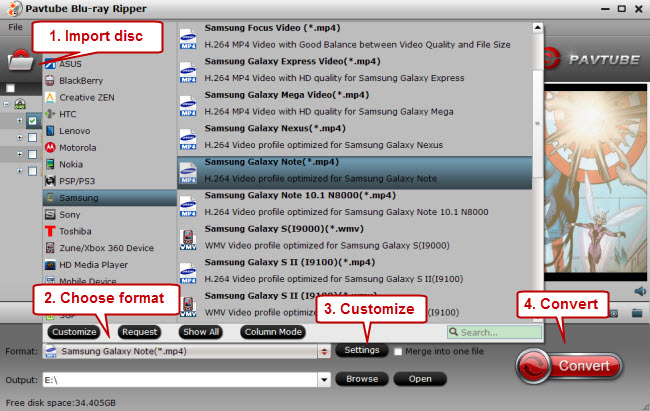
Run the best Blu-ray to Galaxy Note Pro Converter; click the "Load disc" icon to browse to your Blu-ray disc driver and import source Blu-ray, or Blu-ray Folder, ISO/IFO files. Don't forget to pick up one audio and subtitle track for display. 

 
Step 3: Select output format for Samsung Galaxy Note Pro 12.2 

You need set format for Blu-ray ISO to Note Pro 12.2 conversion. Just click the “ Format”, and select a desired format for Galaxy Note Pro 12.2; Just choose one profile under “Samsung” category as output format, such as "Samsung Galaxy Note(*.mp4)". 

Step 4: Set customized settings 

The Blu-ray ISO to Note Pro Converter allows users to customize profile presetsby clicking “Setting” button. You can adjust audio and video parameters tooptimize the output file quality, including video and audio codec, bitrate, framerate, display resolution, audio channel, etc. To get 1080p resolution playbackon Samsung Galaxy Note Pro 12.2, we recommend you to set output size at “1920*1080”. 

Step 5: Rip Blu-ray ISO to Samsung Galaxy Note Pro 12.2 

Hit the big “Convert” button to start ripping Blu-ray ISO movies to Samsung Galaxy Note Pro 12.2 compatible file format. When the BD ripping task completes, click the “Open”button to get the final output files and transfer to your tablet. 

Now you areready to watch Blu-ray ISO movies on Samsung Galaxy Note Pro 12.2 with 1080p resolution smoothly. 

Your may want to read: 


More 
Are you facing troubles in YIFY Torrents stream via Plex? Solved! 
Upload GoPro Hero 4K Video to DropBox 
4K to Note 5 – Enjoy 4K Videos to Samsung New Galaxy Note 5 
Stream and Convert MKV to Apple TV 4 and Playback in M4V 
Watch iTunes Movies on Samsung 4K UHD TV via USB Flash Drive 
Losslessly convert iTunes M4V videos for PS3 Playback 
Blu-ray to MKV Ripping- How to keep Dolby Digital TrueHD 7.1 Audio 
How to Rip DVD Movie to H.264 MP4 for playback on Microsoft Surface Pro 

Src 

Put and Play Blu-ray ISO movies on Samsung Galaxy Note