2015/11/12

Watch Blu-ray movies to Samsung Galaxy Tab S 10.5 and 8.4


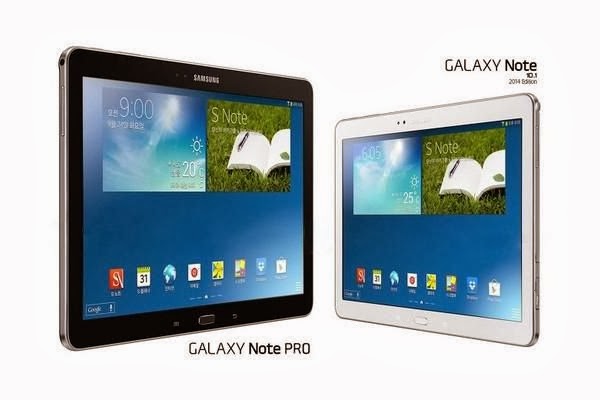
The Samsung Galaxy Tab S features an 10.5-inch and 8.4-inch Super AMOLED screen with a 2,560 x 1,600-pixel resolution, which is great for us to browse the websites, play games, and watch movies. However, the problem is that the Samsung Galaxy Tab S doesn't have a Blu-ray-ROM for playing Blu-ray movies, you need to convert Blu-ray to video files that are supported by Galaxy tablet and then transfer the video files to your tablet for playback. Looking for a reliable way to do that? 


Of course, first you need to get a best Blu-ray to Galaxy Tab S converter, Puzzle at which one to select? Here, Pavtube BDMagic (Now, you can get 30% off ) highly recommended to help you backup and rip Blu-ray to MP4 videos to play on Samsung Galaxy Tab S. 


Which features we should focus on when choose a best Blu-ray to Galaxy Tab S converter? 
A.How effective is the converter when it rips Blu-ray, DVD copy protection? B. What about the video quality after conversion, will it be nice without those annoying scratches and other irregularities? 
C. How about the conversion speed, is it real-time, or far beyond real-time? 

With Pavtube BDMagic, you can fast rip your Blu-ray, DVD collections as well as ISO/IFO image files to Galaxy Tab S 10.5 and 8.4 videos with optimized video settings bypass the Blu-ray/DVD copy protection. If you are using Mac OS, you can refer to BDMagic for Mac . Download the tool and get the step-by-step tutorial. 

Step 1. Import Blu-ray disc/ISO/folder. 

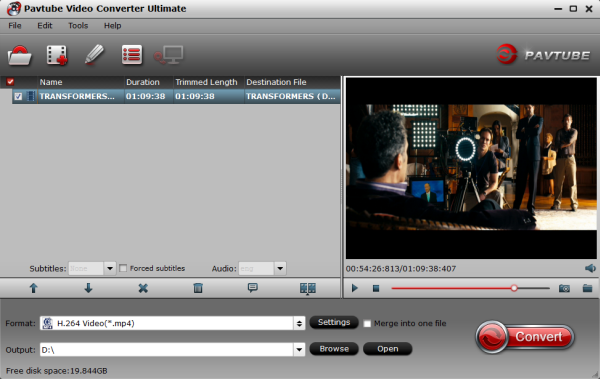
Click "Load files" to choose import from ROM, Blu-ray ISO/IFO or Blu-ray folder. It will detect and check the main title automatically; so keep it as default unless you want to include tidbits. 

Step 2. Choose output profile 

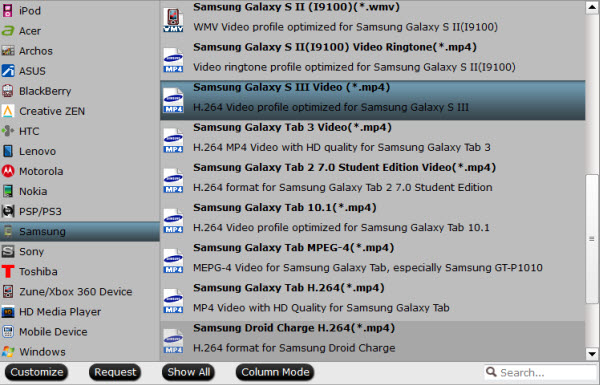
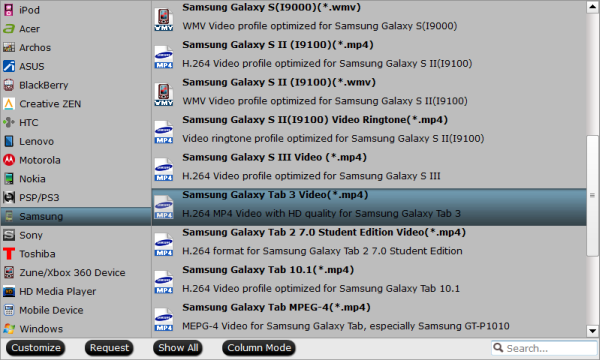
Choose output profile via clicking the Format bar. Here I recommend you select "Samsung > Samsung Galaxy Tab 3 Video(*.mp4)" as the export format. The output videos could fit on Galaxy Tab S 10.5 and 8.4 perfectly. 


Tip: If you think the video size and image quality are not suitable for your Samsung tablet, you can first choose any one of the provided types, then change the settings. Please remember the file size is based more on bitrate than resolution which means bitrate higher results in bigger file size, and lower visible quality loss. 

Step 3. Start Blu-ray to Galaxy Tab S conversion 

When everything is OK, just press "Convert" button to start to rip Blu-ray to Galaxy Tab S 10.5 and 8.4 mp4 videos. 

Useful Tips: 

If you planning to rip DVDs for playing on Galaxy Tab S, you will need a DVD to Galaxy Tab S Converted. 

That’s all, enjoy the movies with best format to your Galaxy Tab S on the go. 

More 


Apple iPhone 6 and iPhone 6 Plus on Pavtube Special Topic 
Dropbox brings Mailbox to Android, launches Carousel 
How to get the World Cup Schedule in Google Calendar 
Rip a DVD ISO to MKV for streaming via Plex with multi audio tracks 
Does Samsung Galaxy TabPro 10.1 supports 720p/1080p MKV Video Playback 
Play TiVo recordings on Kindle Fire HDX, Kindle Fire HD and Kindle Fire 
Strore DVD ISO onto QNAP with VLC server and stream to Sony Bravia TV 
Convert AVI from MiniDV cassettes to Apple TV with AC3 5.1 


Src 

Watch Blu-ray movies to Samsung Galaxy Tab S 10.5 and 8.4 

2015/11/10

Pavtube Thanksgiving Deals - Up to 40% Off Discount

Pavtube Thanksgiving Deals - Up to 40% Off Discount 

Pavtube launched 40% OFF Thanksgiving Promotion 2015 when users can get top Video/DVD/BD Converter for Win/Mac with the least money.
Have you prepared the Thanksgiving gift for your Mum and Dad? If not, Pavtube gives you the best idea. You can record the happy time with your parents and add your thanks in the video using a video editing program. To release the idea, Pavtube Studio prepares Thanksgiving Special Offer where you can get the best tool to help you achieve the video pruduce.


Pavtube will offer you the professional and top-rank Video/BD/DVD software at a lower price than ever in the Thanksgiving celebrating activity. These top products includes Pavtube BDMagic, Pavtube DVDAid,Pavtube ByteCopy and Pavtube Video Converter Ultimate. These programs help you convert your Thanksgiving shoot to iMovie, FCP, Premiere Pro CC, etc to edit and rip DVD/Blu-ray Thanksgiving movies to your Apple TV, iPad Mini 4, Surface Pro, PS4, Xbox One, etc with the most compatible format and original video quality. You even can trim a video footage in movies with them to add your own Thanksgiving record.

If you want to know more the function of Pavtube products and the difference between them, just go to visit Pavtube Studio Official Site.

Once you have a Pavtube product in hand, you will enjoy the service of life-long technical support and update in time to compatible with any Win/Mac system upgrade. Catch this opportunity and enjoy the best video production experience with the least money in Pavtube.

The price comparison of Pavtube featured products between Thanksgiving price and original price is as below:

  • Pavtube Video Converter Ultimate: Original price $65, Now $52 
  • Pavtube BDMagic: Original price $49, Now $34.3 
  • Pavtube DVDAid: Original price $35, Now $21 
  • Pavtube ByteCopy: Original price $42, Now $33.6

Note: This attractive price will only be get until Thanksgiving promotion ends. Please bear in mind all software programs will go back to original prices once the Thanksgiving special offer 2015 ends.


Src
Pavtube Coupon Code for Thanksgiving: Up to 40% OFF BD/DVD Copying Tool 

Does Samsung Galaxy TabPro 10.1 supports 720p/1080p MKV Video Playback?


This tutorial mainly shows you how to convert and put MKV movie to Samsung Galaxy TabPro 10.1 so that you can play 720p/1080p MKV Movie on Galaxy TabPro 10.1 easily with best quality.

I have to admit: There have been events, because Samsung has significantly less thick than ascended to the local CES: Only the PRO-series with four devices causes a stir - reason enough that we also look at the Galaxy Tab 10.1.


The 10-inch Galaxy Tab Pro comes with 2GB of RAM and either 16GB or 32GB of internal memory. It also has a microSD card that can hold as much as 64GB of added storage. Also the display corresponds to the other models, triggers accordingly with 2,560 x 1,600 pixels.

Itis great for watching movies with Galaxy TabPro 10.1. Having lots of MKV videos in hand and plan to enjoy them on the upcoming Galaxy TabPro 10.1? However, you will get frustrated as the MKV video can't be supported by Galaxy TabPro 10.1.

By installing a video player such as Dice Player or MX Player from Google Play or Amazon Apps, you can enable support for playing MKV files on your Samsung Galaxy Tab Pro 10.1 , however, you will likely run into playback issues such as stuttering video, freezing video, audio sync issues or even playback in slow-motion. If you're confused about this, below is a simple tutorial for you, guanranteed to get MKV videos and Galaxy TabPro 10.1 to play nicely.

To put MKV files to Galaxy TabPro 10.1, first convert MKV to H.264 .mp4 format and then transfer converted videos to Samsung Galaxy TabPro 10.1 tablet for playing.

Here we will recommend you this MKV to Galaxy TabPro Converter, a professional Galaxy TabPro Video Converter which handles not only MKV files, but MXF/MTS/VOB/WMV/FLV/Tivo/M4V/MPG to the most suitable profile for Galaxy TabPro 10.1 with simplest workflow and reliable video quality. If you are Mac users, try MKV to Galaxy TabPro Converter for Mac

Get a free trial and follow the guide to convert MKV to Galaxy TabPro 10.1


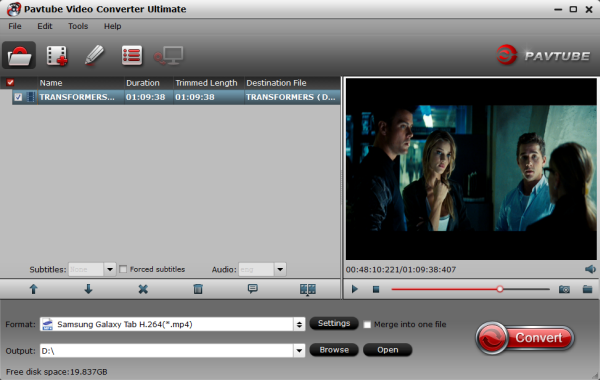
Step 1. Run this Pavtube Video Converter Ultimate as the Galaxy TabPro 10.1 Converter; import videos.

Click "Add video" to import source videos.


Step 2. Choose video format.

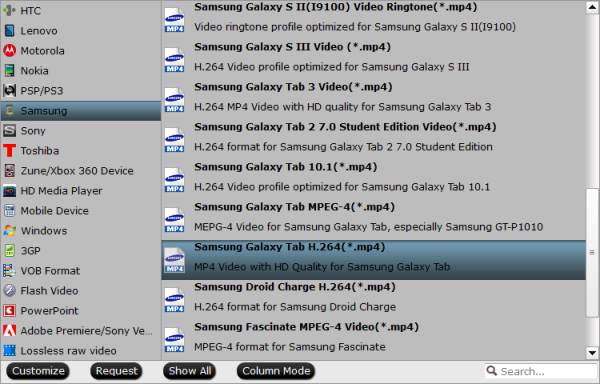
Click the drop-down list besides "Format", select Samsung > Samsung Galaxy Tab H.264(*.mp4) as the best profile for Galaxy TabPro 10.1.


Step 3. Edit video before conversion. (Optional)

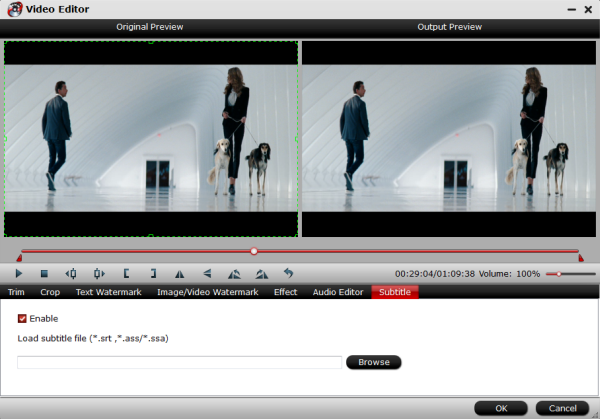
You can edit these videos before conversion by clicking the pencil-like icon on the top. Some of the source video such as /MKV could be interlaced which is not good for playback; in this case you can check "Deinterlacing" in Effect tab to get perfect progressive HD MP4 videos. Trim, crop, edit audio, add srt/ass/ssa subtitles and 3D effect are all supported in this edit window.


Back to main interface, click "Settings" to customize video size, frame rate, bitrate and other settings.

Step 4. Start conversion.

Click "Convert" to start converting MKV to MP4 for Galaxy TabPro 10.1. Wait for a few moments, and click "Open" or "Open output folder" to quick locate the converted video.


More
Ripping DVD to Multi-track MP4 video on Mac OS X El Capitan
The genocide of Roku, and can UHDTV attain where 3D TV failed
Rip a DVD ISO to MKV for streaming via Plex with multi audio tracks
Rip/Store my Blu-ray collection on NAS server for easy usage with Tablet, PC and TV
Put DVD to Galaxy S6/S6 Edge for Gear VR Innovator Edition
The best solution to play AVI videos on Kindle Fire HDX Smoothly 
Compress 4K Ultra HD Resolution Videos from YouTube

Src

Does Samsung Galaxy TabPro 10.1 supports 720p/1080p

2015/11/8

Put DVD to Galaxy S6/S6 Edge for Gear VR Innovator Edition


The article shows an easy step-by-step guide on how to rip DVDs to 3D SBS MP4/MKV format so that you can view DVD movies in in Galaxy S6/S6 Edge with Gear VR Innovator Edition. 

The Samsung Gear VR has plenty of potential, but it is limited by a sparse content store out of the box. The positive is that Samsung and Oculus have made it easy to import and watch your own movies in virtual cinema mode. If you want to put DVD movies to watch with Gear VR Innovator Edition in Galaxy S6 and S6 Edge on the go, but don't know what to do? Get the solution below that teaches you how to rip DVD to Samsung Galaxy S6/S6 Edge compatible videos so that you can enjoy your DVD movies in Gear VR Innovator Edition more conveniently. 

Hot Search: DVD to FCP | DVD to Plex | DVD to NAS | DVD to Roku | DVD to Xbox 


To convert DVD to Gear VR Innovator Edition for watching everywhere, Pavtube DVDAid is highly recommended. It can professionally rip DVD to Gear VR Innovator Edition supported 3D SBS MP4/MKV video format with fast speed and excellent output quality. Equipped with 3 different 3D effects: Side by Side, Red/Blue and Top/Bottom. In addition, this DVD ripping tool can also convert DVD to various popular video formats like AVI, MP4, WMV, MPEG, MOV, FLV, MKV, 3GP, etc. as well as rip DVD to optimized video for playback on iPad, iPod, iPhone, Zune, Creative Zen, Archos, iRiver, Blackberry, Xbox 360 and more. 

Free download the DVD to Gear VR Innovator Edition Converter: 


Hot News for all Mac users! Pavtube Studio has launched a user-requested upgrade for all its Mac BD/DVD and package tools: DVDAid for Mac, BDMagic for Mac, ByteCopy for Mac, iMedia Converter for Mac to version 4.8.5.1, which focuses on the addition of the H.265 encoders and decoders. 

New features of DVDAid for Mac v4.8.5.1: 

1. Supported to encode H.265/HEVC codec 
2. Optimize coding parameters 
3. Fix some bugs 

How to rip DVD to MP4 videos view on Gear VR Innovator Edition 

Step 1. Import DVD movies 

Insert the DVD disc into your DVD drive and launch the Gear VR Innovator Edition DVD ripper. Click "Load DVD" to select and import the DVD movies you want to rip. ISO and IFO files are also supported. 


Step 2. Specify output format 

From the Format bar, find "3D Video" catalogue, you will find several presets for Side-by-Side 3D, Top-Bottom 3D and Anaglyph 3D. You can choose the one according to your device specification. SBS MP4/MKV is usually the recommended one which is perfect for Gear VR Innovator Edition. (Read Differences Between Anaglyph 3D and SBS 3D) 


Step 3. Start to convert DVD to Gear VR Innovator Edition 

Now go to the last step: click "Convert" to begin ripping DVD to Gear VR Innovator Edition compatible MP4 video files. After the conversion, you can tap "Open" to locate the converted videos immediately. Then connect your S6 and S6 Edge to computer and transfer the video files to your device for enjoyment on the go. 

Import your movie files into the "My Videos" folder on your MicroSD card. then follow these steps: 

1. On your MicroSD card file directory, navigate to Oculus > Movies > Your Movies 

2. Create a new folder within "Your Movies" and label it "3D" 

3. Import or move your side-by-side 3D videos into your newly created "3D" folder 

Once you have created your 3D content folder and imported compatible video files, insert your MicroSD card into your Galaxy S6 (if it isn't already), dock the phone in your Gear VR Innovator Edition, and don the virtual reality headset. Then: 

1. Navigate to Oculus Cinema from the main menu 

2. Navigate to "My Videos" from the Oculus Cinema content library menu 

3. Select the 3D video you wish to view (if you followed the above steps it should have a "3D" label in the upper right hand corner) 

4. Choose the cinema mode to begin playback 

Tip: If you also want to covert DVD, 2D/3D movies for Galaxy S6 with Gear VR Innovator Edition, Pavtube Video Converter Ultimate will be a nice assistant. 


More 

Play DVD on iPad, Backup DVD to Wireless Plus for streaming to iPad 
Transfer HD Videos and Movies to SamSung Galaxy NotePro 
Convert Blu-ray/DVD movies to iTunes 11 for streaming to Apple TV 3 
Help getting Chromecast to stream through your Blu-ray/DVD 
Need help for easiest way to transcode movies on NAS 
Can’t add and play YIFY .MKV movies in Plex server 
Play 4K Videos on Mac OS X El Capitan 
How To Copy ITunes Movies To IPhone 6 For ZEISS VR One 


Src 
Put DVD to Galaxy S6/S6 Edge for Gear VR Innovator Edition

2015/11/5

Putting (disney) DVD movies onto Galaxy Tab 3 Kids Edition tablet to play for my daughter


A simple guide to ripping and putting (disney) DVD movies onto Galaxy Tab 3 Kids Edition tablet so that you Kids can enjoy their favourited DVD movies anywhere. 

I like watching TV and reading books. And when I am doing my own things, I don't want anyone to disturb me. As I have a lovely daughter, so I planned to buy Galaxy Tab 3 Kids Edition tablet for her, only to calm her down by getting her to watch Disney DVD movies at home. For my daughter, it will also be an enjoyable thing to view her favorite DVD on her own tablet. If you have the same demand. Read this article, I'll show you how to easily and fast rip and copy DVD films to Galaxy Tab 3 Kids Edition tablet for your children. 


To enjoy DVD movies on Galaxy Tab 3 Kids Edition, first you need to find a perfect application for ripping/converting DVD to Galaxy supported format. 

No worries; this Top DVD to Galaxy Tab 3 Kids Ripper, from Pavtube for ripping and converting DVD movies to Galaxy Tab 3 Kids MP4. Ease of use, with clean and simple interface, reasonable price, lot of formats supported and basically, faster ripping speed and perfect video quality, it will become your most reliable DVD Ripping tool and the most important is its lossless ripping ability feature. The Mac version is Pavtube DVDAid for Mac 

Becides, I also have tried DvdFab. I didn't like the fact that I was forced to manually select the BD region before ripping. Also, It doesn't preserve movie structure (i.e. chapters). Slower ripping. 

Get the trial version and follow the steps below: 

How to Rip (Disney) DVD movie to Galaxy Tab 3 Kids supported format 

Step 1. Run DVDAid, as the DVD to Galaxy Tab 3 Kids Converter. Click "Load Files" to import DVD. 

It will recognize DVD discs from ROM, DVD ISO/IFO and DVD folders automatically. 


Step 2. Choose Samsung Galaxy Tab 3 Kids compatible format. 

Click "Format" drop-down list to locate all the profile; choose "Samsung -> Samsung Galaxy Tab 3 Video(*.mp4)" as the most compatible format for Galaxy Tab 3 Kids Edition. 


Tips: If you want to rip DVD to for Galaxy Tab 3 Kids Edition with multiple audio tracks and subtitles, Bytecopy, will help you with special multiple track MP4 profiles. Choose "Multi-track MP4 (*.mp4)" from "Multi-track Video". 

Step 3. Customize video specs.(Optional) 

Click "Settings" to set up video size, frame rate, bitrate and other settings. 

According to my experience, for watching videos on the Samsung Galaxy tablets, 2000~2500kbps is just all right. And for 7.0 Inch 1,024 X 600 display Galaxy Tab 3 Kids Edition, so you can choose the size for “1024 *600”. If you're not happy with the output quality, just adjust the bitrate as you like. 

Step 4. Start the DVD to Galaxy Tab 3 Kids conversion. 

Now hit to big "Convert" button to start the DVD to Galaxy MP4 conversion. Wait for some moments, then click "Open output folder" to quick locate the converted MP4 file. 


More 

Can’t add and play YIFY .MKV movies in Plex server 
Play 4K Videos on Mac OS X El Capitan 
Help getting Chromecast to stream through your Blu-ray/DVD 
Need help for easiest way to transcode movies on NAS to LG WebOs HDTV via plex 
How To Copy ITunes Movies To IPhone 6 For ZEISS VR One? 
Play DVD on iPad, Backup DVD to Wireless Plus for streaming to iPad 
Transfer HD Videos and Movies to SamSung Galaxy NotePro 12.2 
Convert Blu-ray/DVD movies to iTunes 11 for streaming to Apple TV 3 on Mac 

Src 

Putting (disney) DVD movies onto Galaxy Tab 3 Kids Edition tablet to play for my daughter 


2015/11/3

Transfer HD Videos and Movies to SamSung Galaxy NotePro 12.2 (Blu-ray, DVD, Video)


This tutorial mainly show you how to rip/compress Blu-ray/DVD/1080p movies to SamSung Galaxy NotePro 12.2 support video format via Pavtube Galaxy NotePro Movie Converter. So you freely enjoy your movies and videos with Galaxy NotePro 12.2 on the go.

Galaxy NotePro 12.2 tablet made its debut during Samsung's event at this year's Consumer Electronics Show in Las Vegas. The NotePRO packs similar to features to other tablets in the Pro line that were also introduced during CES.
In terms of design, the NotePRO will feature the same thin profile and faux leather backing as the other Note devices including the Note 3 and Note 10.1. This tablet features with a 12.2-inch Super Clear LCD display with 2560 x 1600 resolution.
If you have some Blu-ray/DVD or 1080p movies at hand, you may want to transfer them to the SamSung Galaxy NotePro 12.2 Tablet. However, for some movie fans, there exist some troubles cause the Android 4.4 KitKat tablet doesn't have a disc drive for Blu-ray/DVD movie playback and it can only play limited formats.

To get the work done, you can convert Blu-ray/DVD and 1080p movies to Galaxy NotePro 12.2 playable videos files first. So, a 3rd-party software is needed. Here Pavtube Video Converter Ultimate(Alternative Mac Version), an all-in-one Movie Converter for NotePro 12.2 is highly recommended to help you achieve your goal smoothly.
Learn more special offer: 
The program can shrink Blu-ray movie to Galaxy NotePro 12.2 videos, rips DVD to SamSung Galaxy NotePro 12.2 optimized formats, and converts videos to Galaxy NotePro 12.2, MKV, AVI, MPG, VOB, TiVo and more, everything can be transferred to Galaxy NotePro 12.2 at ease.

Frankly, I tried several softwares and I can tell you that NO ONE comes even close to the simpleness and great quality that the proram deliver. The time it takes to convert in this software is almost half that in other. Now just download it and follow the step-by-step guide to get your Blu-ray, DVD movies and 1080/720p videos into SamSung Galaxy NotePro 12.2 for playing without problems. 

Simple Guide of transferring or copying movies to SamSung Galaxy NotePro 12.2 (DVD, Blu-ray, video)

Note: BD drive is required for ripping Blu-ray disc.

Step 1. Once run the Ultimate Video Converter for Galaxy on your PC, import source media for movie to Galaxy NotePro 12.2 conversion. You can click "Add Video" to load video files like MTS/M2TS, MKV, MOV, TOD, TiVo, etc or click on "BD/DVD folder" to load movie from DVD and Blu-ray source(Disc, folder, ISO).


Tip: By click "settings" button, you can easily adjust the output parameters of the video. Remember the file size is based more on bitrate than resolution which means bitrate higher results in big file size, and lower visible quality loss.

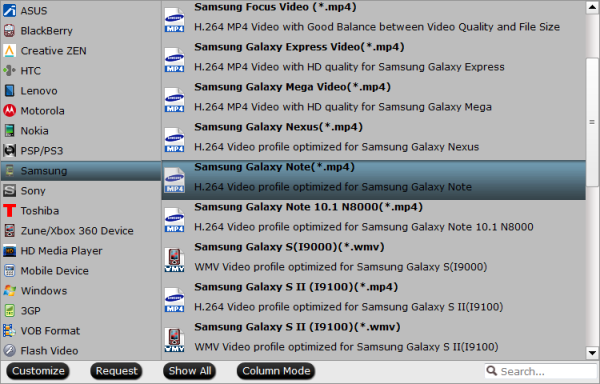
Step 2. Select output format. You can easily find the optimized profiles for Galaxy NotePro 12.2 under " Samsung > Samsung Galaxy Note(*.mp4)" which is specially designed for Galaxy NotePro and supplies full-screen effect.


Step 3. Click "Convert" button to start converting Video, DVD, Blu-ray movie to Samsung Galaxy NotePro 12.2 optimized videos.

Once finishing, connect your Samsung Galaxy Note Pro to PC with the supplied USB cable, and run Kies on your PC. When your Galaxy Note Pro is connected to Kies, start syncing the converted HD Videos and Movies to your Samsung Galaxy Note Pro.


More
How to Watch Blu-ray Movies on QuickTime on Mac OS X El
Can’t Transfer Blu-rays on your New iPod Touch
Put and Play Digital Copy movies on Galaxy Tab 3
Work Panasonic HD MTS Files with iPad or Apple TV Well
Easiest way to convert Video_ts folder for use on Plex server
Best DVD Copying software for ripping DVD to store on NAS
Play DVD on iPad, Backup DVD to Wireless Plus for streaming to iPad
Stream/Transfer ISO files to Chromecast within 3 clicks

Src
Transfer HD Videos and Movies to SamSung Galaxy 

2015/10/26

Pavtube 40% Off Spirit Halloween Coupons & Discount


Pavtube launched 40% OFF Halloween Promotion from October 21 to November 6, 2015 when users can get top Video/DVD/BD Converter for Win/Mac with the least money. 
pavtube halloween promotion,halloween special offer, halloween sale 2015 

Halloween is coming. To give you a better Halloween celebration, Pavtube holds 40% off Halloween promotion from October 21 to November 6, 2015. During the period, you can get the professional Blu-ray/DVD Ripper and Video Converter for Win/Mac with less money than any other campaign. 

During Halloween, many people will not just watch Halloween movies but make Halloween videos by themselves. No matter Halloween movies enjoyment or Halloween video production, you probably need a video converter. For example, when you want to play your Blu-ray/DVD Halloween disc on your iPad Pro, Surface Pro 3, you can rip the disc to the device supported format with Pavtube BDMagic or Pavtube DVAid. Another case, you record the Halloween party scene and you are about to upload the camcorder video to Facebook to show your cool dressup, you’d better choose to transcode the camera video to Facebook or Vimeo accepted video with Pavtube Video Converter Ultimate. No matter what situations about video editing and producing, you can find the software you want at Pavtube Studio. 

Pavtube product is closed-source, not like Handbrake. But it deserves to pay for its life-long technical support and update in time to compatible with any Win/Mac system upgrade. Catch this opportunity and enjoy the best video production experience with the least money. 

The price comparison of Pavtube featured products between Halloween price and original price is as below: 
  • Pavtube Video Converter Ultimate: Original price $65, Now $52 
  • Pavtube BDMagic: Original price $49, Now $34.3 
  • Pavtube DVDAid: Original price $35, Now $21 
  • Pavtube ByteCopy: Original price $42, Now $33.6


Note: This attractive price will only be get until November 6, 2015. Please bear in mind all software programs will go back to original prices once the Halloween special offer 2015 ends. 

Time-limited. What are you waiting for? Action now!