2015/12/3

Does Samsung Galaxy Tab S 10.5 and 8.4 play MVI videos?


This article offers the easiest Windows/Mac solution to convert MVI videos to Galaxy Tab S 10.5 and 8.4 for freely playback with best quality & fast speed. 

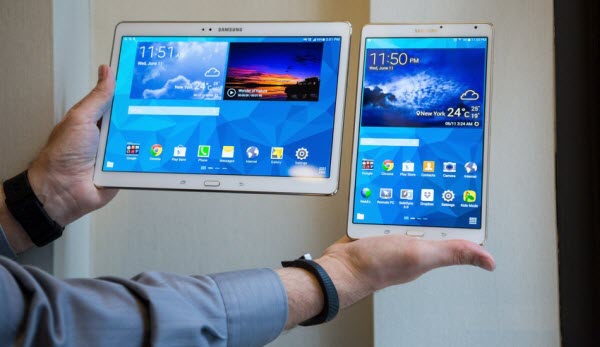
Samsung Galaxy Tab S is available in two versions, one has an 8.4-inch display, while the other a 10.5-inch screen. The biggest highlight of the two different sized tablets comes from the Super AMOLED display. The super-AMOLED screen boasts breathtaking and rich views with bold and saturated colors and deep contrast levels, resulting in a visually immersive user experience. However, Galaxy Tab S only plays video it supportes. Do you know MVI format? Galaxy Tab S does not support MVI format yet. 
 
What's MVI? 

MVI stands for Musical Video Interactive, also a DVD-based means of packing audio, video and interactive visual content onto one disk, and the audio content is provided in multiple formats, including a high-definition version and and MP3 version for copying to portable audio players. The video content is compatible with DVD video, and can also optionally include high-definition video. 

This makes users who want to play mvi videos on Galaxy Tab S 10.5 and 8.4 upset and they will look for ways for transferring MVI videos onto Galaxy Tab S. First of all, let's look at which video and audio formats your Samsung Galaxy Tab S supports. 

Galaxy Tab S Video Formats Supported: 

H.263, H.264(AVC), MPEG4, VC-1, WMV7, WMV8, VP8 
Recording : FHD(1920 x 1080) @ 30fps 
Playback: WQHD (2560×1440) @ 30fps 

Galaxy Tab S Audio Formats Supported: 

MP3, AAC, AAC+, eAAC+, WMA, Vorbis, FLAC 

Obviously, the most compatible video format for Galaxy Tab S is MP4 files encoded with MPEG-4 or H.264. The most effective way is to convert MVI to MP4 with best video settings for Galaxy Tab S. Now follow this article; you will learn how to accomplish this easily within a few clicks. 

Convert and transfer MVI video to Samsung Galaxy Tab S 10.5 and 8.4 

Preparation: 

Here I'd like to introduce Pavtube Galaxy Tab S Video Converter, a very easy-to-use video to Galaxy Tab S converting program which comes with flawless video quality and quick conversion speed. Reach the Mac version here: Video to Galaxy Tab S Converter for Mac. 

Tutorials: Change MVI videos to Galaxy Tab S friendly format 

Step 1: Load MVI video files to this Video to Galaxy Tab S Converter 

Download the Pavtube Video to Galaxy Tab S Converter on your computer, install and run the program, add videos. 

You can choose to import videos or the entire folder by clicking the top left two icons. 

Step 2. Choose a proper format for Galaxy Tab S. 

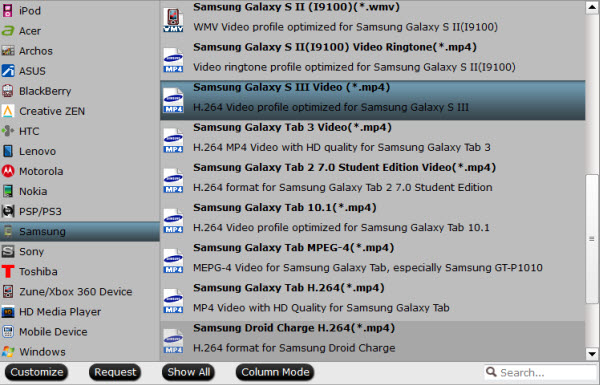
Click "Format" drop-down list and choose "Samsung -> Samsung Galaxy Tab 3 Video(*.mp4) " as the compatible MP4 preset with best video quality. 


Step 3. Customize video specs for Galaxy Tab S (Optional). 

You could also click the "Settings" to adjust the video and audio parameters of output files. 

In the Video Settings, you can select Encoder, Frame Rate, Resolution (you could define it yourself according to your Galaxy Tab S tablet) and Bitrate for your movie. Here, I think 1920 *1080 resolution, 2500 kbps bit rate, 24 fps Frame Rate is all right. 

In the Audio Settings, you can select Encoder, Channels, Bitrate and Sample Rate for your movie. 

Step 4. Start MVI Videos to Galaxy Tab S Conversion. 

You can hit the big red "Convert" to start converting MVI to MP4 with best video settings for Galaxy Tab S. After the conversion, click "Open output folder" in the conversion window, or "Open" in main interface to quick locate the converted video. 

Now, you can transfer MVI videos to Galaxy Tab S 10.5 and 8.4 for smooth playback without any problem. 


More 
Play MKV, AVI, MP4, FLV, WMV, MPG, MOV by Chromecast 
Rip DTS-HD track to FLAC 5.1 audio using Plex 
Upload Blu-ray to Dropbox for Sharing 
Backup DVD onto Synology DS216play Via Mac El Capitan 
How to watch 3D Videos on Galaxy Note 4 with Gear VR 
Blu-ray to iTunes Converter -Sync Blu-rays to iTunes for Apple Devices 
Watch iTunes Movie on Android Tablet or Smartphone 
Play Blu-ray ISO with HEVC MP4 on Mac OS X El Capitan 

Src 
Does Samsung Galaxy Tab S 10.5 and 8.4 play MVI videos

2015/12/1

Easy Solve Galaxy S5/S4/S4 Mini/S3/S2 Won't Play MKV, AVI, VOB, FLV, MP4, Xvid Issue

Have no idea to transfer MKV, AVI, VOB, FLV, MP4, Xvid Videos to Samsung Galaxy S5, S4, S4 Mini, S3, S2 in best video quality. Read the article to learn how. 

Many smartphones can be used as great portable media players, like the cool Samsung Galaxy S Series. If you have one of them, say, Galaxy S5, chances are you want to transfer recorded or downloaded video contents to it for entertainment anytime and anywhere. But do you know how? This article focuses on showing you the easy way on how to transfer MKV, AVI, VOB, FLV, MP4, Xvid to Galaxy S5, S4, S4 Mini, S3, S2. 


Can a MKV player or AVI player or anything else can play videos on Samsung Galaxy S smartphone? Nevertheless, they can play various HD or SD videos, but only on Windows/Mac computer, instead of on the Android smartphone, which only plays MP4, H.264 and the like. If you want to play various videos like MKV, AVI, VOB, FLV, MP4, Xvid on Galaxy S5, S4, S4 Mini, S3, S2, you should find a professional video converter to convert all kinds of videos to compatible formats for further usage, which is best video converter for Galaxy S5, S4, S4 Mini, S3, S2? 

Here, Pavtube Video Converter Ultimate (Read review here) is your best choice. It has easy quick interface, and great final file quality and is able to convert any videos like MKV,AVI and WMV to general videos to Apple iPad iPod iPhone, Sony PSP PS3, as well as Xbox, Android HTC, Nokia, PDA, or even MP3 audio file. (For Mac users: Get iMedia Converter for Mac) 

Fistly download and install the right vertion, and then follow the easy steps below to convert SD/HD Videos in MKV, AVI, VOB, FLV, MP4, Xvid to MP4 format for Galaxy S5, S4, S4 Mini, S3, S2. 

Step 1. Import source videos to the Galaxy S Video Converter. 

Install and run the best Video Converter for Galaxy S phone on your computer. Add videos in the following two ways: 

1. Click “Add video” button to choose video files from your hard drive for converting. 

2. Directly drag the videos to the Windows 8.1 Video Converter. 

Tips: To save your time, you can add multiple video files for converting at a time since batch conversion is well supported. 


Step 2. Choose presets for Galaxy S5, S4, S4 Mini, S3, S2. 

Click the “Format” list to choose Samsung > Samsung Galaxy S III Video (*.mp4) as the best profile for Galaxy S5, S4, S4 Mini, S3, S2. Or you can key in “galaxy s” in the little search box to get it. 


Step 3. Edit video and customize specs before conversion. (Optional) 

You can edit these videos before conversion by clicking the pencil-like icon on the top. Trim, crop, edit audio and add srt/ass/ssa subtitles are all supported in this edit window. 

Back to main interface, you can click Settings to free customize video size, bitrate(quality), frame rate, sample rate and other specs. 


Step 4. Start converting all Videos for Galaxy S5, S4, S4 Mini, S3, S2. 

Click the red “Convert” to start converting MKV, AVI, VOB, FLV, MP4, Xvid to Galaxy S5, S4, S4 Mini, S3, S2. Wait for a few moments, and you can click “Open output folder” to locate the converted video quickly. Now you can transfer videos to your Galaxy S phones for entertainment. 

Is that all of its features? Of course Not! Highly acclaimed as Swiss Army Knife, this versatile Galaxy Svideo converter also functions as a strong performer to rip your Blu-ray and DVDto play on your Galaxy devices. 


More 


Apple iPhone 6 and iPhone 6 Plus on Pavtube Special Topic 
Dropbox brings Mailbox to Android, launches Carousel 
How to get the World Cup Schedule in Google Calendar 
Rip a DVD ISO to MKV for streaming via Plex with multi audio tracks 
Does Samsung Galaxy TabPro 10.1 supports 720p/1080p MKV Video Playback 
Play TiVo recordings on Kindle Fire HDX, Kindle Fire HD and Kindle Fire 
Strore DVD ISO onto QNAP with VLC server and stream to Sony Bravia TV 
Convert AVI from MiniDV cassettes to Apple TV with AC3 5.1 

Src 
Easy Solve Galaxy S5/S4/S4 Mini/S3/S2 Won't Play MKV 

2015/11/29

Backup DVD to Galaxy S6/S6 Edge in Gear VR Innovator Edition


The Samsung Gear VR has plenty of potential, but it is limited by a sparse content store out of the box. The positive is that Samsung and Oculus have made it easy to import and watch your own movies in virtual cinema mode. If you want to put DVD movies onto Galaxy S6 and S6 Edge in Gear VR Innovator Edition for watching on the go, but don’t know what to do? Get the solution below that teaches you how to rip DVD to Samsung Galaxy S6/S6 Edge compatible videos so that you can enjoy your DVD movies in Gear VR Innovator Edition more conveniently. 


To convert DVD to Galaxy S6/S6 Edge in Gear VR Innovator Edition for watching everywhere, Pavtube DVDAid is highly recommended. It can professionally rip DVD to Galaxy S6/S6 Edge in Gear VR Innovator Edition supported video format with fast speed and excellent output quality. In addition, this DVD ripping tool can also convert DVD to various popular video formats like AVI, MP4, WMV, MPEG, MOV, FLV, MKV, 3GP, etc. as well as rip DVD to optimized video for playback on iPad, iPod, iPhone, Zune, Creative Zen, Archos, iRiver, Blackberry, Xbox 360 and more. Read the Review. 

Note: If you are a Mac user, you can turn to Pavtube DVDAid for Mac (Yosemite included), which has the same function as the Windows version. Now download the right version and follow the tips below to finish your task. 

Free download the DVD to Gear VR Converter: 


How to rip DVD to MP4 videos view on Gear VR Innovator Edition 

Step 1. Import DVD movies 

Insert the DVD disc into your DVD drive and launch the Galaxy S6/S6 Edge DVD ripper. Click “Load DVD” to select and import the DVD movies you want to rip for Galaxy S6/S6 Edge. ISO and IFO files are also supported. 


Step 2. Specify output format 

Click drop down menu of Format; here you can select “Samsung > Samsung Galaxy S III Video (*.mp4)” as the output format, which is a format specially designed for Galaxy S3 but also works for the S6 and S6 Edge perfectly. 


Step 3. Start to convert DVD to Galaxy Note 4 

Now go to the last step: click “Convert” to begin ripping DVD to Galaxy S6 and S6 Edge compatible MP4 video files. After the conversion, you can tap “Open” to locate the converted videos immediately. Then connect your S6 and S6 Edge to computer and transfer the video files to your device for enjoyment on the go. 

Tip: For watching 3D movies, Galaxy S6/S6 Edge Blu-ray Ripper assist users to convert both 2D/3D MKV/AVI to 3D video which enables to watch movies on your 3D devices with HD quality. Equipped with 3 different 3D effects: Side by Side, Red/Blue and Top/Bottom. 

More 

Apple iPhone 6 and iPhone 6 Plus on Pavtube Special Topic 
Dropbox brings Mailbox to Android, launches Carousel 
How to get the World Cup Schedule in Google Calendar 
Rip a DVD ISO to MKV for streaming via Plex with multi audio tracks 
Does Samsung Galaxy TabPro 10.1 supports 720p/1080p MKV Video Playback 
Play TiVo recordings on Kindle Fire HDX, Kindle Fire HD and Kindle Fire 
Strore DVD ISO onto QNAP with VLC server and stream to Sony Bravia TV 
Convert AVI from MiniDV cassettes to Apple TV with AC3 5.1 

Src 
Rip DVD to Galaxy S6/S6 Edge in Gear VR Innovator

2015/11/24

Pavtube Unveils 2015 Cyber Monday Biggest Promo: Only $17.5 DVD Ripper/DVD Copy Software


Pavtube Studio offers the biggest coupon for its resounding DVD Ripper/Copier at Cyber Monday from Nov. 30 to Dec. 1. 2015. Only $17.5, you can get the professional DVD Ripper for Win/Mac. This price will be the lowest in DVD Ripper/Copier field after compared all the competitors. If you are planning to purchase one DVD Ripper for your large DVD collection, Cyber Monday will be your best chance andPavtube Studio can be your first consideration. 


Pavtube Studio has been devoting himself to develop the DVD ripping and copying technology skills for many years. Its top-selling DVD Ripper - Pavtube DVDAid can decrypt DVD with CSS, region code, UOP, Sony ArccOS, Disney X-project DRM. It can convert DVD to H.265, M3U8, MP4,MKV, AVI, MOV, etc with original video quality on Windows 10/8.1/8/7, XP. For those who are not computerman, DVDAid provides the optimized preset for mainstreaming multimedia players, like iPad, Apple TV 4, Microsoft Surface Pro, PS3,PS4, Xbox One, LG TV, Samsung Galaxy/Note series, etc. Of course, if you want to customize your own video, it still allows you to adjust video/audio bitrate, resolution frame rate, sample rate, codec, etc to get smaller or higher resolution video as your need. 

Its Mac version - Pavtube DVDAid for Mac has the equivalence function as the Windows version. Pavtube Studio is always updating its products to fit in with each operating system upgrade on computer. So you can rip any commercial DVD on Mac OS X 10.11 El Capitan without worrying software breakdown issue. 

Pricing and Availability 
On November 30 and December 1 2015, Pavtube DVDAid (worth $35 regularly) is available without extra charge from 


About Pavtube Studio 

Pavtube Studio specializes in multimedia software based on Windows and Mac OS X which provides personal and home-use video audio software across Apple, Android, Microsoft, Samsung, HTC, Google, Sony and other platforms or devices, including DVD Rippers, Video Converters, Blu-ray Rippers, Audio Extractor, iPhone Data Recovery, etc. Except DVD Ripper, Pavtube actually gives consumers other Cyber Monday Coupon on Blu-ray Ripper and Video Converter. See details in the below chart: 


Software Compare 


Pavtube Video Converter Ultimate 


Pavtube MXF MultiMixer (Win/Mac) 


Purchase Benefits 

lifetime free upgrade; 30-day money back.


Original Price: $65

Now: $45.5

Buy Now


Original Price: $45

Now: $31.5

Buy Now


Supported Source 


DVDs,Blu-ray,etc.

Video files:
H.264, MP4, MOV, MKV, VOB, WMV, MPG,etc.

Audio files:
M4A, WMA, WAV, MP3, Ram, DTS, etc.
√


MXF Files (*.MXF, *.mxf footage shot by Panasonic P2 camcorders, Canon XF series camcorders, etc.)
√
√


Output Formats 


Apple devices:Apple TV 4, iPad Air 3, etc.

Android devices:
 Samsung Galaxy S6, etc.

Windows devices: Microsoft Surface 3/4, etc.

Game consoles and media players: PS4, PS3, Xbox 360, etc.

Others: BlackBerry, Nokia, VTech InnoTab tablets, Kurio, Coby, Kobo, etc.
√
√


Video Editing Tool: FCP X, FCP 6/7, etc.

Burning Tool: iDVD, Roxio Toast, etc.

More: YouTube, NAS, Networked Devices,Facebook, etc.
√
√


Other Functions 


Edit parameters, merge, crop, trim and add SRT subtitle.
√
√


If you want to know more Pavtube Cyber Coupon, you can visit Pavtube Facebook.


2015/11/22

Pavtube Offer 2015 Thanksgiving Related Tips and Articles

Pavtube Offer 2015 Thanksgiving Related Tips and Articles 

Thanksgiving day looms. Have you prepared all the decorations like candles, pumpkins, party music or songs and the most important Thanksgiving recipes? If you were busy working in the past several days and had no time to think about the Thanksgiving idea, here lists several Thanksgiving tips and articles. Read them to get some inspiration to make your Thanksgiving big gathering night fantastic. 


Top 10 Must Watch Movies on Thanksgiving Day 

This guide present the best 10 movies about Thanksgiving day. You can enjoy them with your family after roasted the turkey and completed the meal preparations. 

Perfect Thanksgiving Gifts for Kids and Parents 

You might haven’t had the idea about Thanksgiving present. If so, you can refer to the article to select a perfect Thanksgiving gift for your parents and kids. 

Best Tool to Watch Scholastic First Thanksgiving Videos 

To get the true spirit of Thanksgiving, it is very essential for us to find more relevant knowledge about Thanksgiving history such as the story of the first Thanksgiving. However, you may fail to play those online downloaded or store purchased Blu-ray/DVD disc Scholastic Thanksgiving movies/TV episodes on your multimedia players due tot various reasons. Here shows you the way to prevent it or the solution to solve it. 

How to Better Play Thanksgiving Songs on Computers or MP3 players? 

There are many songs for Thanksgiving about thankfulness, turkeys or warm Thanksgiving dinners, etc to help families and friends get the spirit of this special day. You may prefer to play those popular Thanksgiving songs on your computer and portable that you are convenient with. 


More 
Rip/Convert DVD ISO/IFO Movies on Mac OS X El Capitan 
Upload DVDs to Dropbox for viewing anywhere 
How to Get all DVDs into Synology NAS drive for Streaming 
Put DVD to Zeiss VR One for Enjoyment via Oculus Cinema 
Watch Blu-ray movies to Samsung Galaxy Tab S 10.5 and 8.4 
How to play MKV, AVI, VOB, Tivo, WMV, MPG, FLV, F4V on Kindle Fire HDX 7 
PlayStation 4 can now play 3D Blu-ray discs 
MP4 won’t display on Apple TV- Converting MP4 to M4V for Apple TV 


Src 
Pavtube Offer 2015 Thanksgiving Related Tips and Articles 

2015/11/17

Convert Blu-ray audio to Samsung phones in an incredible easy way


Want to rip and convert audio from Blu-ray for playback on your Samsung phones? This guide will show you how to realize Blu-ray audio conversion.

Do you have Blu-ray’s that you wanted to convert into other format to make it playable in your Samsung phones? But in some reasons, the transferred Blu-ray movie files could not play well on your player or you just need to the audio for listening, especially you have Blu-rays of the singer's performance you loved. With this requirement, the need for Blu-ray audio conversion is a must.

There are instances where in you will need to rip and extract audio from Blu-ray into Samsung phone supported MP3 file. Due to the Blu-rays are most protected, so you need a useful tool to rip protected Blu-ray to MP3 with ease.

Pavtube BDMagic is exactly the one you need to rip and convert Blu-ray videos to audios, such as MP3, WMA, AAC, WAV, M4A, AC3, etc. What'more, you can rip any segment, and set output file size and audio quality. The mac version is BDMagic for Mac. Now let's focus on how to convert Blu-ray to MP3 for playing on Samsung phones with Blu-ray Audio Ripper.
How to extract audio from Blu-Ray Disc to Samsung phones?

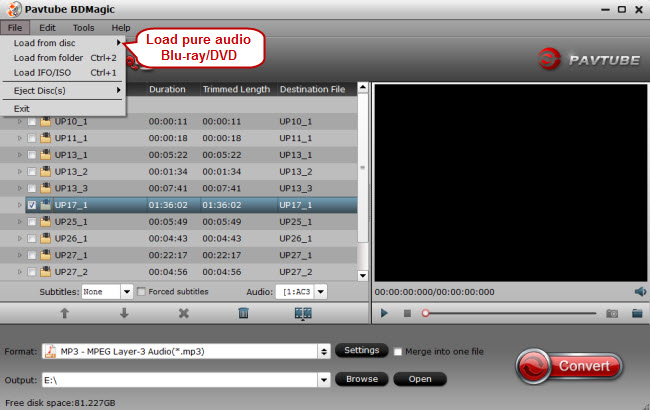
Step 1. Load Blu-ray movie

Load your Blu-ray in the Blu-ray drive by clicking "Load file(s)".


Step 2. Choose the needed profile

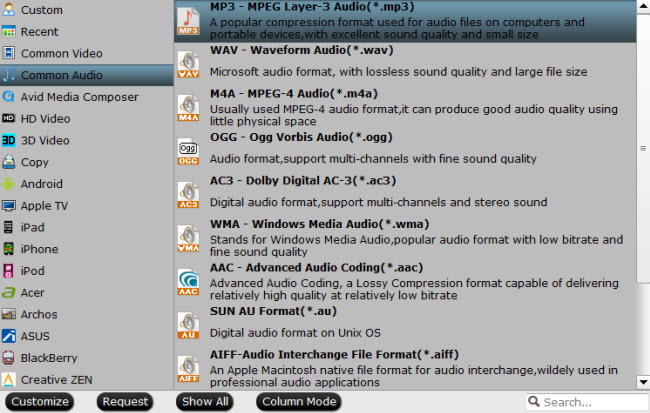
Click Format bar to open the output format window. In the "Common Audio" category, you'll find Samsung phones supported MP3 audio format, just choose it as the output format.


Note: Before start the conversion, you can edit your Blu-rays first.

Click "Trim" button to set the "Start Time" and "End Time" in order to keep the segments you want and remove the ones unwanted;

Click "Setting..." button and a window will pop up. Then press "Advanced" button to adjust the volume/bitrate/sample rate and change the channel/audio codec, etc;

Step 3. Start the Blu-ray audio ripping

Once you have all the right settings, you would click the Convert button to complete Blu-ray to MP3 conversion process. After conversion, click Open to find the output audio files. Now it would be easy totransfer the converted mp3 files into your Samsung phones for playback.


Src

Play MKV, AVI, MP4, FLV, WMV, MPG, MOV by Chromecast
Rip DTS-HD track to FLAC 5.1 audio using Plex
Upload Blu-ray to Dropbox for Sharing 
Backup DVD onto Synology DS216play Via Mac El Capitan
How to watch 3D Videos on Galaxy Note 4 with Gear VR
Blu-ray to iTunes Converter -Sync Blu-rays to iTunes for Apple Devices
Watch iTunes Movie on Android Tablet or Smartphone
Play Blu-ray ISO with HEVC MP4 on Mac OS X El Capitan

More

Convert Blu-ray audio to Samsung phones in an incredible

2015/11/15

How to watch 3D Videos on Galaxy Note 4 with Gear VR


In this article , detailed steps about how to set up the Gear VR for enjoying 3D videos on Note 4 and for some unknown problems like non-supported videos and turn 2D to 3D for Note 4 will also dig a little. Virtual 3D world is on its way, just grab it and follow this 3D wave. 


Gear VR is a 3D virtual reality headset which allows you to experience a virtual reality like ever before. This gear was promoted by Samsung Company which is a big hit on the 3D market. You can enjoy the 3D videos on Note 4 via Gear VR no matter where you are, you don’t have to purchase a bulky 3D TV to follow the 3D wave and you can still enjoy the 3D videos even when you travel away. 

First, we have to figure that this Gear VR don’t have much technical support for there need Note 4 plays as its brain and screen. And you must wonder how to watch 3D videos on Note 4 via Gear VR, since some 2D or non-supported videos can’t turn themselves into 3D videos by this Note 4. Here you may need the 3D videos to Gear VR Converter to help you. 

Pavtube Video Converter for Mac is regard as a wonder 3D video transformer. You can load almost all the 2D, non-supported videos into this app then choose the suitable formats to convert then stream them into Note 4 and playback with Gear VR. (Learn Format Supported by Gear VR Software before Buying) 


How to watch 3D videos from Galaxy Note 4 via Gear VR? (h2) 

Step 1. Launch this 3D videos to Gear VR Converter on your Mac 

This app can support Yosemite without any hassle. And no other bundle apps hide in this install package. After installing this app, then you can load your videos by clicking “File”>”Add Video/Audio”. 

Tips: 

During the installation, if one error message pop up “unidentified developer”, please follow these steps to tackle this problem: 

1. Launch System Preferences from the Apple menu 

2. Choose “Security & Privacy” and then click the “General” tab, followed by clicking the lock icon in the corner to unlock the settings 

3. Look for “Allow applications downloaded from” and choose “Mac App Store and identified developers” 

4. Accept the security warning and allow 

5. You can now launch any app from any location or developer 

And this step won’t make your Mac be a vulnerable one, if you not sure about it , after the installation , you can change your settings back for sure. 

Step 2. Choose 3D Side-by-side to playback on Note 4 via Gear VR 

If your videos are 2D or non-supported videos, then you can change them into the most suitable files for your Note 4 and your Gear VR. Just click “Format” to this “3D”>”Mp4 Side-by-Side 3D Video(*.mp4)” for a compatible feature. 


Tips: 

Some users just step into the 3D world and don’t very know about the differences between Side-by-side and Anaglyph, here is an article you can refer to. 

Step 3. Adjust the parameters if you need 

If you want to make your 2D into 3D HD videos, here you can click “Settings” to improve the quality of your source videos for more vivid 3D viewing experience. You can go for 1920*1080p for your output videos. 


Step 4. Start to transcode files to 3D for playing on Note 4 via Gear VR 

After setting the file location, then you can click the “Convert” to start your conversion, which the conversion time depends on the file size and the parameters. 

If you forget about the file location, you can click this “Open output folder” to check your converted files.To view your SBS 3D videos on your Gear VR, follow these steps: 

1. On your Micro SD card file directory, navigate to Oculus>Movies> Your Movies 

2. Create a new folder within “Your Movies” and label it “3D” 

3. Import or move your SBS 3D videos into your newly created “3D” folder 

Once you have created your 3D content folder and imported compatible video files, insert your MicroSD card into your Galaxy Note 4 (if it isn’t already), dock the phone in your Gear VR, and don the virtual reality headset. Then: 

1. Navigate to Oculus Cinema from the main menu 

2. Navigate to “My Videos” from the Oculus Cinema content library menu 

Select the 3D video you wish to view (if you followed the above steps it should have a “3D”lablel in the upper righthand corner) 

3. Choose the cinema mode to begin playback 

Now you can enjoy the 3D videos with Note 4 via Gear VR as you like. Just jump into this wonderful virtual viewing experience! 


More 

Rip/Convert DVD ISO/IFO Movies on Mac OS X El Capitan 
Upload DVDs to Dropbox for viewing anywhere 
How to Get all DVDs into Synology NAS drive for Streaming 
Put DVD to Zeiss VR One for Enjoyment via Oculus Cinema 
Watch Blu-ray movies to Samsung Galaxy Tab S 10.5 and 8.4 
How to play MKV, AVI, VOB, Tivo, WMV, MPG, FLV, F4V on Kindle Fire HDX 7 
PlayStation 4 can now play 3D Blu-ray discs 
MP4 won’t display on Apple TV- Converting MP4 to M4V for Apple TV 

Src 
How to watch 3D Videos on Galaxy Note