Good News for DVD collector!! Pavtube today announces an official start of DVDAid for Windows/Mac in the Round 2 phase of its Christmas promotion for All Facebook Fans. 60% Discount Coupon! Only 2 Day! Time-Limited! Rush to Buy! Reportedly 5 to 6 times faster than a boatload of its competitors, this Windows-based program is eating up a bigger market share.  Pavtube DVDAid provides the best solution to rip DVD and convert DVD to video and audio in popular file formats for many devices. Along with multiple practical bonus features like video editor, DVDAid is capable of improving your DVD movie experience without location or time limitations. It could backup DVD and convert DVD to various video and audio formats including M3U8, H.265/H.264 MP4, MKV, MOV, AVI, WMV, MP3, AAC, etc to let you enjoy DVD movies on any mobile device like iPhone 6S, iPhone 6S Plus, iPad Air 2, iPad Mini 4, Galaxy S6, Galaxy S6 Edge, Kindle Fire HDX, PS3, PSP, Surface, and more.

 (Only $14)

 (Only $14) What can Pavtube DVDAid give you? Learn More about Pavtube DVDAid on PC/Mac 1. Rip and copy any commercial and region-locked DVD to nearly all popular video/audio format, like M3U8, H.265, MP4, MKV, AVI, Apple ProRes, DivX, etc. 2. Makes 1:1 copy of original DVD Disc without quality loss with all audio streams, subtitle tracks, extras, etc. 3. Optimized preset for mainstream multimedia players: portable Apple, Android, Microsoft, Google and Sony devices, smart TVs, VR Headsets, Game Consoles, Media Player & Box Streamer, Storage & Server and more. 4. Specially designed formats included to be compatible with Mac video editing software: Apple ProRes, AIC, Avid DNxHD, MPEG-2, MOV, AVI, etc. for FCP X, iMovie, Avid Media Composer, Adobe Premiere Pro CC and more Non-linear editing system. 5. Full Compatible with Windows 10, Windows 8.1, Windows 8, Windows 7, Windows 2003/XP/Vista 6. Full Compatible with Mac OS X 10.11 El Capitan, Mac OS X 10.10 Yosemite, 10.9 Mavericks, 10.8 Mountain Lion, 10.7 Lion, 10.6 Snow Leopard, 10.5 Leopard Expire on Dec 23, 2015 Tip 1. To reach out to Pavtube's more Christmas Coupons, please go to http://www.multipelife.com/pavtube-2015-christmas-great-promotions Tip 2. There are four main Pavtube products: BDMagic, ByteCopy, DVDAid, Video Converter Ultimate. As their names suggest, they are designed for different purposes. Here is a brief form for you to make the right purchasing choice: Pavtube Softwares Comparison Tip 3. To go deeper in user experience, Pavtube Facebook will offer more coupons with different softwares in future. The list are as follows: Pavtube Facebook Round 3: 50% OFF 50% OFF Video Converter Ultimate/iMedia Converter for Mac on Dec 23, 2015, Only 4 Day Pavtube Facebook Round 4: Only $9.9 Video Converter, HD Video Converter, MTS/M2TS Converter, MXF Converter, ChewTune, MKV Converter, FLV/F4V Converter, DVD Creator or MXF MultiMixer for Mac/Windows, on Dec 28, 2015, Only 3 Day Pavtube Facebook Round 5: 60% OFF BDMagic for Windows, 55% OFF BDMagic for Mac on Dec 31, 2015, Only 1 Day Constantly surprises, quickly order your favorite software to backup, edit and share your favorite Christmas movies, music, and videos. Time-Limited! Action! If you have any problem to buy or use Pavtube, pls feel free to contact [URL]dvdwinsupport@pavtube.com[/URL] (for Windows BD/DVD rippers user), [URL]videowinsupport@pavtube.com[/URL] (for Windows video converters user), [URL]dvdmacsupport@pavtube.com[/URL] (for Mac BD/DVD ripper user), or [URL]videomacsupport@pavtube.com[/URL] (for Mac video converter user). Learn more at https://www.facebook.com/pavtubefans/app/201742856511228/
If you are a super movie fan and also like to produce video, don’t miss the carnival in Mac Blu-ray/DVD/Video Tools on Christmas from Pavtube. Pavtube officially holds the Christmas promotion for All Facebook Fans to get 50% off on his all top-selling Blu-ray/DVD/Video Tools. The softwares involved in the activity contains Pavtube ByteCopy for Mac, BDMagic for Mac, DVDAid for Mac, iMedia Converter for Mac, HD Video Converter for Mac, iMixMXF for Mac.  Copy/Backup Blu-ray/DVD on Mac El Capitan, Yosemite, etc All of Pavtube Blu-ray/DVD/Video tools have updated to support the newest Mac OS X El Capitan systems, so you will get no difficulty to make a full disc copy or the main movie copy of the original 2D/3D Blu-ray/DVD disc on Mac OS X El Capitan. Besides that, the program also enables you to rip/convert Blu-ray/DVD disc to various different file formats on Mac OS X El Capitan, Yosemite, Mavericks, Mountain Lion, etc platform for playing on iPhone/iPad/iPod, Android phone and tablets, Windows phones or tablets, game consoles, HD media players, streaming to Apple TV/Amazon Fire TV/Roku, etc. Play and edit videos on Mac OS X For video editing amateur, you can effectively convert virtually any file formats including AVI, WMV, MP4, MOV, FLV, VOB, MKV, MKV, MTS, M2TS, Tivo, H.265 in SD, HD, 2K, 4K videos to your desired file formats to import your source video to any popular video editing tool. For camera and camcorder users, you will have a fast and fluid workflow on Mac OS X with our program by exporting professional video editing codec such as Apple Prores Codec for Final Cut Pro 6/7/x, Apple Intermediate Codec(AIC) for iMovie/Final Cut Express, DNxHD MOV for Avid Media Composer, After Effects CC/Adobe Premiere Pro/Adobe Premiere Elements/Sony Vegas specially optimized file formats, etc. Learn more at https://www.facebook.com/pavtubefans/app/201742856511228/
In this tutorial, you will learn how to convert DVD to Galaxy S series compatible formats so that you can watch favourite DVD movies on Galaxy S5/S4/S3 with ease. Samsung's smartphones have make a great contribution on multimedia enjoyment, especially the Galaxy series, like Galaxy S5, S4, S3 and so forth. The big screen makes these flagship phones perfect for watching movies and you no doubt will figure out that it's amazing to play DVD on Samsung Galaxy S5, S4, S3.  Play DVD on Galaxy S5, S4, S3 May Sounds Crazy, but Do it with Galaxy S DVD Ripper Smartphones can never play DVDs directly, however, Samsung Galaxy S5, S4, S3 are no exception. To play DVD on Samsung Galaxy S5, S4, S3, you need to rip DVD to Samsung Galaxy S series video formatfirst. This can be easily done with a proper DVD ripper. With ready-made Samsung Galaxy S series presets, Pavtube DVDAid should be reckoned the best DVD Ripper in ripping DVD for Samsung Galaxy S series phones. This Galaxy S DVD Ripper is powerful and standalone in DVD region code/copy protection removing, fast in DVD conversion speed and great in the support for all mainstream video formats and devices in the output category. You can also convert DVD to Galaxy S5, S4, S3 video usingPavtube DVDAid for Mac. In support of all new movies, the Windows/Mac DVD ripper can help you watch movies Thor 2: The Dark World, Gravity, The Wolf of Wall Street, The Hobbit: The Desolation Of Smaug, Superman: Man Of Steel, etc on Galaxy S5, S4, S3 without downloading. With no effort, you can have a digital file of the source DVD on your hard drive of Mac or PC, and transfer/sync the video to your S5, S4, S3 gadget. The following guide is for your reference: How to Convert DVD to Samsung Galaxy S5, S4, S3 Video Format STEP 1: Load DVD movies Insert your DVD disc into computer's DVD-Rom and then launch the top DVD Ripper. Click DVD disc button to load the DVD movies. You can also import ISO files, IFO files or DVD folder (DVD folders files name appear like "Video_TS") for conversion. Tip: If you need to rip DVD with wanted subtitles and audio track, you can click the drop down menu after "Subtitles" and "Audio" to select your desired tracks.
 STEP 2: Decide output format and folder Click on the dropdown menu of "Format" and choose "Samsung" - > "Samsung Galaxy S III Video (*.mp4)". The output videos could fit on Galaxy S3 perfectly and also fit for your Galaxy S4 or Galaxy S5. And meanwhile click "Browse" button to specify a destination folder for the final output files.
 STEP 3: Customize output settings You are allowed to customize the output parameters by click "Settings" icon. Keep in mind that bitrate higher results in big file size, and lower visible quality loss, and vice versa. For playing DVD on DVD to Galaxy S5, S4, S3, 1280*720 video size, 1000 or 1500kpbs video bitrate is proper.
 STEP 4: Rip DVD to Galaxy S5, S4, S3 The last step will be conversion. Click "Convert" button to start conversion. The conversion will be finished at fast speed and high output quality. STEP 5: Transfer DVD to Samsung DVD to Galaxy S5, S4, S3 When conversion done, click "Open" to get converted movie files. Connect Samsung Galaxy S5, S4, S3 to PC and then drag and drop the converted files into the right folder of the memory card. Or you canstream DVD movies to Galaxy S5, S4, S3 for watching anytime anywhere. What's more, DVD ISO/IFO, Blu-ray(ISO) and AVI video can also be playable on your Galaxy S5. More Play MKV, AVI, MP4, FLV, WMV, MPG, MOV by Chromecast Rip DTS-HD track to FLAC 5.1 audio using Plex Upload Blu-ray to Dropbox for Sharing Backup DVD onto Synology DS216play Via Mac El Capitan How to watch 3D Videos on Galaxy Note 4 with Gear VR Blu-ray to iTunes Converter -Sync Blu-rays to iTunes for Apple Devices Watch iTunes Movie on Android Tablet or Smartphone Play Blu-ray ISO with HEVC MP4 on Mac OS X El Capitan Src Ripping DVDs to Play on Samsung Galaxy S5 S4 S3
Summary: Now I will share my experience for easily backup favorite Blu-ray and DVD from physical Disney disks and other movies for playing on Galaxy Note 3 for my kids. I am so excited to say I like Disney movies and I have some Blu-ray/DVD and other download movie collections in hand now from Disney. My kids couldn't wait to sit down and watch Disney movies as it is a real treat for them. They made sure they had all of things done before watching Disney movies and they like enjoying their favorite movies on the excellent Galaxy Note 3 device. But as we all know, Blu-rays and DVDs are usually hard to be backed up due to region code and disc encryption protection, and other download movie files may not be supported by my Galaxy Note 3. The article below will help you better enjoy your all kinds of Disney Movies to Galaxy Note 3 for enjoying. Just follow it. First, Free Download the App - Pavtube Video Converter Ultimate The program can help you rip Blu-ray/DVD to Galaxy Note 3 and convert HD videos to Galaxy Note 3, including MKV, AVI, MPG, VOB, TiVo and more, everything can be transferred to Galaxy Note 3 optimized formats at ease. Meanwhile the playback of the converted videos is as decent as possible as original and the conversions can be made for use on all forms of the Galaxy Note 3. If you are a Mac user, you can use its equivalent Mac version -iMedia Converter Mac to achieve your goal smoothly. Ripping All kinds of Disney Movies to Galaxy Note 3 for playing for my kids Step 1: Import souce video files to the program Once run the Ulitmate Movie Converter for Galaxy software, click "Add Video" to load video files like MTS/M2TS, MKV, VOB, MOV, TOD, TiVo, etc or click on "BD/DVD disc" icon to load movie from DVD and Blu-ray source(Disc, folder, ISO). Step 2: Select the suitable output video format Select the suitable output video format. Click "Format" bar, you can easily find the optimized videos for Galaxy Note 3 under "Samsung > Samsung Galaxy Note(*.mp4)". The preset is specially designed for Galaxy Note and also fit on Galaxy Note 3 perfectly and supplies full-screen playback. Click "Settings" to change the video encoder, resolution, frame rate, etc. as you wish. Keep in mind that bitrate higher results in big file size, and lower visible quality loss, and vice versa. For watching movies on Galaxy Note 3, 720p with 1500~2500kbps is just all right. Step 3: Start encoding Disney movies to Galaxy Note 3 MP4 videos After above steps, just click "Convert" to begin ripping Disney Blu-ray/DVD and converting 1080p/720p Disney videos to Galaxy Note 3 highly compatible MP4 videos. When the ripping task is completed, you can click "Open" to find the ripped videos. After that, connect your device to computer via USB and transfer the videos to it with ease. So there you have it. Pretty simple. Now, you can play any Disney movie on Galaxy Note 3 for your kids to have a great digital fun. More Play TiVo recordings on Kindle Fire HDX, Kindle Fire HD and Kindle Fire Strore DVD ISO onto QNAP with VLC server and stream to Sony Bravia TV Convert AVI from MiniDV cassettes to Apple TV with AC3 5.1 Apple iPhone 6 and iPhone 6 Plus on Pavtube Special Topic Dropbox brings Mailbox to Android, launches Carousel How to get the World Cup Schedule in Google Calendar Rip a DVD ISO to MKV for streaming via Plex with multi audio tracks Does Samsung Galaxy TabPro 10.1 supports 720p/1080p MKV Video Playback Src Ripping All kinds of Disney Movies to Galaxy Note 3 for playing for my kids
Everyone’s happy in Stinky Cigars, the secret town where all the holiday characters live – except Murray Weiner, the grumpy owner of Murray’s Holiday Diner. But when Santa is knocked out cold by an experimental toy – the Jack-in-the-Boxer – it’s up to Murray to save Christmas – which he does, in a weirdly wonderful way. This is the story told in the movie-How Murray Saved Christmas.  If you buy How Murray Saved Christmas on iTunes and want to transfer it to Surface Pro to watch, then you got it. However, iTunes video is DRM protected which will be disfavored as it prevents them from fully accessing to those videos on non-apple devices, not to mention the rental ones. Therefore, to remove iTunes DRM for watching limitlessly on Surface Pro seems to be of top priority. With Best DRM removal tool – Pavtube ChewTune you could easily remove DRM from iTunes video and convert iTunes M4V videos to Surface Pro support video with fast speed and high quality. Therefore, you can freely enjoy iTunes videos on Surface Pro without any limitations or DRM protection. Read the review. With it, you can also sync Amazon wmv video and Digital Copy to Surface tablets. Step 1. Load your iTunes M4V video to Pavtube iTunes to Surface Pro converter. You can either browser to file location or drag and drop source How Murray Saved Christmas iTunes file to the app.
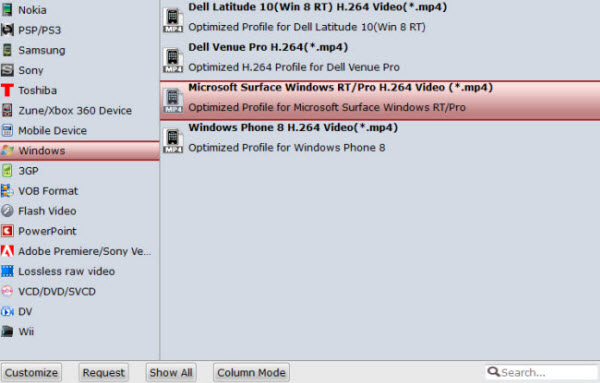
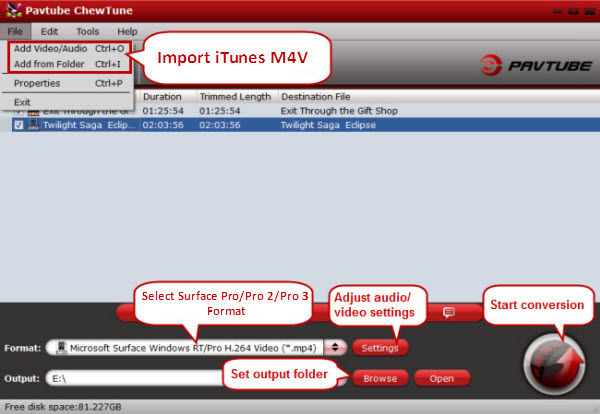 Step 2. Choose the optimized profile for Surface Pro. Click the “Format” drop-down menu and select “Microsoft > Microsoft Surface Windows RT/Pro H.264 Video (*.mp4)”.
 Step 3. Is necessary, you could set video and audio parameters such as video and audio codec, bitrate, frame rate, etc so that better video and audio quality can be transferred to your Surface Pro tablet. Step 4. Hit the “Convert” button to start How Murray Saved Christmas iTunes M4V to Surface Pro MP4 recording. Since Pavtube ChewTune records source DRM videos in 1:1 video and audio quality, it would take as long as the source movie length for the whole DRM video to Surface Pro conversion process since Pavtube ChewTune records source DRM videos in 1:1 video and audio quality. Once it completes, open output folder, locate the created MP4 file and transfer the iTunes M4V movies to Surface Pro tablet for viewing. More Import Galaxy S6/S6 Edge videos to iMovie for Mac OS X El Capitan Is there a way to cast a Blu-ray using Chromecast 2 from PC to TV? Does Samsung Galaxy Tab S 10.5 and 8.4 play MVI videos? Transfer and Rip TiVo Recordings to Apple TV 4 without Quality Loss Store MKV M2TS to Sony PS4 – Play HD Movies on a Display through PS4 Place Blu-Ray To Micro SD Card For Android Tablets Watch Rental Netflix 3D Blu-ray to PS4 via Mac Yosemite Src Play How Murray Saved Christmas iTunes movie on Surface
The future is finally here – consumer virtual reality headsets are coming this Christmas that work in conjunction with the smartphone in your pocket, rather than being tied to a computer or consoles as with the Oculus Rift and PlayStation VR. 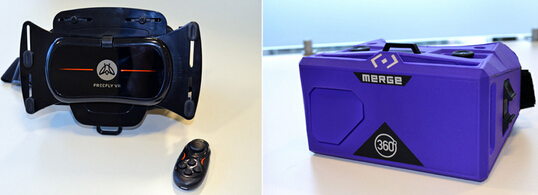 Super-keen virtual reality nerds will already have queued up for hours to test out the upcoming Samsung Gear VR or the HTC Vive, but if you’re just a casual user who wouldn’t mind dipping your toe in the water and you don’t want to pay a premium price, then there is an alternative.Merge VR Googles and the Freefly VR headset are two virtual reality headsets now on the market that aim to give a better experience than Google Cardboard, while still not breaking the bank. But are they any good? Let’s find out.
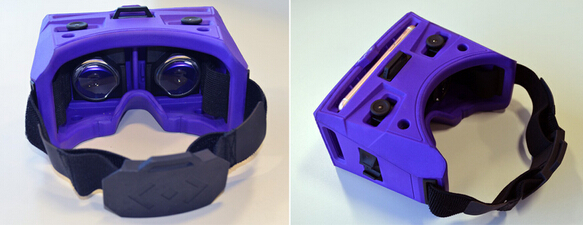 The Merge VR Goggles come with an adjustable head strap, knobs to adjust the lenses and the buttons on the iPhone 6S are easily accessible for interactionIBTimes UK The Merge VR Goggles feature adjustable straps and lenses, which is useful to ensure that your view of the VR app is as clear as possible. There is also a hole in the front of the headset where presumably one day the smartphone’s camera can interact with a virtual reality landscape, but there are no apps that allow you to test this feature for now. The headset was very comfortable to wear and it was good to be able to instantly adjust the volume on the smartphone through the hole on the top of the headset. However, even after adjusting the lenses, the view still seemed to be a bit blurry, almost as if the app was in quite low resolution. After wearing the headset for a while it becomes quite heavy and your eyes start to feel strained. The general advice with VR headsets is that you can’t wear them for too long, but this is a pity as you can’t get sucked into a VR app game the way you do with a video game console. One plus point about this headset is that it’s made from hypoallergenic foam, but the negative is that it feels very block-y and a bit cheap. Merge VR Googles The Verdict The Merge VR is very comfortable to wear and it is definitely lighter on your head than the Oculus Rift or the Samsung Gear VR, but at the end of the day, it’s still only made from foam, so it doesn’t have the sophisticated feel you’d expect from spending £50. Scores:
- Design: 8/10 - The foam is comfortable and the lenses and straps are easily adjustable.
- Lenses: 6/10 - The lenses were not as clear as they could be.
- Functionality: 6/10 - Smartphone buttons easy to access, but interaction is limited besides moving your head.
Pros:
- Adjustable straps.
- Light, comfortable, hypoallergenic design.
- Easy to access smartphone buttons.
Cons:
- Feels cheap.
- Interactions are limited.
- No electronic input.
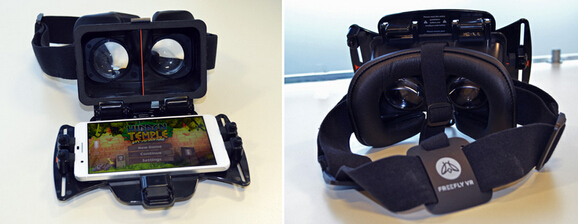 The Freefly VR headset opens up so the Huawei Honor 6 Plus smartphone can be securely clipped insideIBTimes UK The Freefly VR headset is quite comfortable to wear and is lighter than the Merge VR, so you can wear it for a long period of time without feeling burdened by the weight of the headset on your head. It also has very good lenses, although sometimes it feels that from certain angles you need the headset to be even closer to your face, and you cannot adjust the straps to achieve this. The plastic feels rather cheap, and the design prevents the user from adjusting the volume or touching any of the smartphone buttons once the phone has been clipped into the headset. You could use headphones, but if you don’t want to, this can be quite annoying as you have to start the app on the smartphone, adjust the volume to what you think it should be, secure the phone to the backing board and then close the headset. There’s no start button on the headset, so it feels that you’re playing catch-up once you put the headset on. The Glide joystick features similar controls to a game console controller. It connects with ease to the smartphone, but as there are almost no VR apps that are Glide-enabled and the ones that are don’t work that great, there is not much to say for now. Freefly VR Headset The Verdict The Freefly VR headset is comfortable to wear and has good lenses, but the plastic makes it feel like a low-end product. However, the Bluetooth-enabled joystick worked perfectly with game apps and enabled a good range of interaction. Scores:
- Design: 7/10 - Lenses and straps are not adjustable; at times you need to hold it to your head.
- Lenses: 8/10 - The lenses are quite clear.
- Functionality: 6/10 - Smartphone buttons inaccessible, but joystick offers additional functionality.
Pros:
- Good lenses.
- Joystick offers interactivity.
- Light and comfortable to wear.
Cons:
- Feels cheap.
- No access to smartphone volume buttons.
- No electronic input.
- Straps can’t be adjusted.
Which should you buy? It depends what you need the VR headset for. If you’re running a promotional marketing event and you want some headsets for the public to view a VR experience, like a 360-degree music video, then both headsets are a massive step-up from Google Cardboard, and I would recommend the Merge VR, especially since it is made from durable hypoallergenic foam, making it a good choice for children too. But if you want to play games, then you might be better off with the Freefly VR headset, which has the Glide joystick that you can interact with, although at the moment, none of the VR apps really work with the Glide. Sadly, both headsets lack the premium feel of being a cool gadget you’re excited to own. If you’re an adult gamer, you’d probably enjoy using the Samsung Gear VR or the Oculus Rift more, as they feel more like the luxury experience you expect from a tech gadget today. In terms of the technology itself, you can’t wear the headsets for very long or you will start to get a headache (or even motion sickness). The standard advice is that you should take the headset off every 10 minutes, but this won’t lead to consumers investing much into the app experience. At the moment, there aren’t many apps for people to play with, and the apps that do exist tend to be mostly VR experiences with little to no interaction with the consumer. There are some VR games, but these mostly rely on the user having to endlessly turn their neck and move their head in order for the phone to pick up the head gesture and translate it into a command in the app. To be fair, these problems are universal across all virtual reality headsets, including the higher-end Samsung Gear VR and the Oculus Rift – my sources who demo these headsets to the public say consumers, including gamers, who try on these headsets complain of headaches, eye strain and irritation after having the headsets on for only a short period of time. Much still needs to change to make virtual reality a viable hobby. Even if you have all the exciting content in the world, people won’t be using virtual reality headsets for lengths of time if the headsets place stress on the eyes and head, and will probably stick to video game consoles and TV. More Import Galaxy S6/S6 Edge videos to iMovie for Mac OS X El Capitan Is there a way to cast a Blu-ray using Chromecast 2 from PC to TV? Does Samsung Galaxy Tab S 10.5 and 8.4 play MVI videos? Transfer and Rip TiVo Recordings to Apple TV 4 without Quality Loss Store MKV M2TS to Sony PS4 – Play HD Movies on a Display through PS4 Place Blu-Ray To Micro SD Card For Android Tablets Watch Rental Netflix 3D Blu-ray to PS4 via Mac Yosemite SrcHow to Convert ISO to Synology NAS for Streaming on iPad
Pavtube offers big Christmas gift for cinephile - up to 40% discount BD/DVD Copying tool so you can get Blu-ray/DVD Ripper and Video converter at the lowest price. Christmas is getting more and more close. You maybe have decorated your Christmas tree with your kids with lots of twinkling lights, garlands and ornaments. Or you have prepared the popular Christmas songs and moviesfor the singing in the family party and watching in the Christmas Eve. Have you recorded the happy time but can’t upload it to YouTube for sharing? Did you meet the playback issue when you test the movies on your wide screen TV or 4K projector? If so, Pavtube gives you the solution. 


 To help you celebrate and record the Christmas, Pavtube offers the customers and potential consumers with big Christmas Coupon for its top-selling BD/DVD Copying tools to provide the media solution on Christmas. Solutions to Blu-ray/DVD movies playback issue There are many reasons that can lead the failure playback on Blu-ray/DVD movies: complex copy protection, different region codes between your disc and BD/DVD driver, format incompatibility, display screen resolution doesn’t match with DVD, BD/DVD drive out-of-work, etc. To avoid all of these issues, you can rip and backup your Blu-ray/DVD to NAS, USB External Drive, WD MyCloud or Seagate Wireless Plus to achieve movie playback on your TV, Projector, Tablet, PC, iPad, etc with Blu-ray/DVD Ripper like Pavtube DVDAid for Windows/Mac, Pavtube BDMagic for Windows/Mac and Pavtube ByteCopy for Windows/Mac. Learn: Pavtube Softwares Comparison: ByteCopy vs BDMagic vs DVDAid vs Video Converter Ultimate How to Play, Edit and Share your Christmas Recording? Generally, video sharing sites, like YouTube, Vimeo, don’t support you recordings with camcorders natively. Before upload the Christmas recordings, you have to transcode them to MP4, AVI, FLV and other sharing sites compatible format. What’s more, some people will want to edit the Christmas recordings before share it, but the raw recordings is MXF, AVCHD or MTS file which can’t be supported by popular video editing tool. That needs you to convert the recordings to video editing tool, like iMovie, FCP, Premiere Pro CC supported format in advance. All of the work can be achieved by Pavtube Video Converter Ultimate for Windows/Mac. It has other powerful function about video conversion and video editing. Just read its review. Learn Also: Burn Christmas Video to DVD Christmas is a nice chance to get these Blu-ray/DVD/Video converter at a lower price. If you need them, just catch the opportunity in Pavtube Christmas Promotion activity.
