2016/1/3

Download and Play Blu-ray/DVD Digital Copy on Galaxy Note 4


Follow this tutorial you will learn an easy way to dwonload/transfer and play Blu-ray/DVD Digital Copy movies on Galaxy Note 4 by stripping DRM from Digital Copies with some help from top DRM removal tool. 

Digital copy is being used more and more on DVD and BluRay releases, it allows consumers to transfer copies of their favorite classic comedy or action-packed films to their iTunes digital library and then view on a Mac or PC, iPod, iPhone or on a widescreen TV with Apple TV, and it also works with Microsoft Windows Media enabled portable video players. 


However, Digital copy files are protected by DRM technology (Digital Rights Management). Unfortunately the Galaxy Note 4 devices have not get a license to play DRM contents, which means Digital Copy movies will not even play on an Galaxy Note 4. On this occasion, you will need to strip DRM from Digital Copies and then convert/record Digital Copy movies to Galaxy Note 4 supported video formats (MP4 with H.264 video codec is highly recommended). To get the work done, a DRM Removal Software is needed. 

Here Pavtube ChewTune, an ease-to-use and top DRM removal software is recommended which can easily help you make free digital copy out of DRM-protected contents to fit your Galaxy Note 4. Besides Digital Copy, you can also remove DRM protection from downloaded or purchased contents from iTunes, Amazon, BBC iPlayer, Blockbuster, wbdigitalcopy, etc. Meanwhile the playback of the recorded movies is as decent as possible as original. (If you are a Mac user, you can get ChewTune for Mac)


More money-saving Software Bundles:


Below I would throw a quick tutorial up on how to strip DRM and convert/record Blu-ray and DVD Digital Copy to Galaxy Note 4 friendly file type with ChewTune. 

Note: Before conversion you need first to transfer Digital Copy to computer (Refer to a detailed guide) in Windows Media (.wmv) or iTunes video format (.m4v). And here we go with the DRM removal process. 

Step 1: Assuming you have downloaded the Digital Copy Converter for Galaxy Note 4 to your PC, the first step is to drag and drop digital copy movie to the software. 


Step 2: Select an Galaxy Note 4 friendly format, e.g. H.264 .mp4 for conversion. 


Just click on the format bar to follow “Samsung” > “Samsung Galaxy Note 4 (*.mp4)” as suitable output format for Samsung Galaxy Note 4. 


Tip: 

If you like, you can click “Settings” to change the video encoder, resolution, frame rate, etc. as you wish. According to my experience, the file size and video quality is based more on bitrate than resolution which means bitrate higher results in big file size, and lower visible quality loss, and vice verse. 


Step 3: Click the big “Convert” button to remove DRM and record Digital Copy movies to Galaxy Note 4 for watching. 

Step 4: Transfer Blu-ray/DVD Digital Copy to Galaxy Note 4. 

When the Digital Copy to Galaxy Note 4 conversion is done, you can click open folder button to get the recorded movie files. Connect your Galaxy Note 4 device to computer and transferconverted files to Galaxy Note 4. 

So there you have it. Pretty simple. Along with some help from the excellent DRM Removal Converter ChewTune, you can effortlessly bring Blu-ray/DVD Digital Copy downloads to your Galaxy Note 4 for watching anytime, anywhere. Have Fun! 


More 

How to Stream MKV Video to Chromecast for Playback 
Get started to Stream Video from PC to Roku using Plex Media Server 
Enjoy all high definition media contents on iPhone 6 Plus 
Painlessly Convert MKV, AVI, VOB, WMV, Tivo, MP4, FLV Video to iPhone 6 for Enjoying 
Play Rented 3D Movies with Apple TV on Mac OS X El Capitan 
Stream Videos from NAS to PS3 via DSLR for playback 
Which Budget Consumer Virtual Reality Headset Should You Buy? 
Convert and Play downloaded 3D Movies on 3D TV 


Src 
Download and Play Blu-ray/DVD Digital Copy on Galaxy

2016/1/1

Let’s Enjoy Movies/Songs on Galaxy Tab E Nook

To complete the range of Nook tablets, Barnes & Noble has launched on October 7, 2015, the 9.6-inch Samsung Galaxy Tab E Nook. The tablet comes with a 9.60-inch display with a resolution of 1280 pixels by 800 pixels at a PPI of 157 pixels per inch. The Samsung Galaxy Tab E Nook 9.6 runs Android 5.1.1 and is powered by a 5000mAh non removable battery. If the Galaxy Tab E name isn’t ringing any bells, don’t worry, the tablet only got a limited release around the world. 

What do you prepare for celebrating the closing Christmas? Exquisitely decorated Christmas tree, joyful family party and wonderful dinner? All of them are essential. Besides, why don't you enjoy sweet and warm ChristmasMovies/Songs on this Galaxy Tab E Nook with your family after dinner? If you having no idea on this, just hold on reading...

Supported Video/Audio Formats for Galaxy Tab E Nook

Video Format : MPEG4,H.263,H.264,VC-1,DivX,WMV7,WMV8,WMV9,VP8

Audio Format: AAC, AAC+, AMR-NB, AMR-WB, eAAC+, MP3, OGG, WAV, WMA, AC-3, FLAC

More Galaxy Tab E Nook supproted formats you can read here.

MP3 and MP4 are the common formats in our life. We can play MP3 music and MP4 video on almost all devices (Smartpohone, Tablet, HDTV, Media play). And the compression file format is easy to transfer and decode. So, for playing all media files on Galaxy Tab S2/E freely, we can convert music to MP3 and convert movies to MP4. Pavtube Video Converter Ultimate is the recommended Galaxy Tab E Nook Format conversion software that can convert Blu-ray, DVD, and any common video format to Galaxy Tab Pro best video format. 《Review》If you are a Mac user, please turn to Pavtube iMedia Converter for Mac.


Other Download:

- Pavtube old official address: http://www.pavtube.cn/blu-ray-video-converter-ultimate/
- Cnet Download: http://download.cnet.com/Pavtube-Video-Converter-Ultimate/3000-2194_4-75938564.html


Other Download:

- Pavtube old official address: http://www.pavtube.cn/imedia-converter-mac/
- Cnet Download: http://download.cnet.com/Pavtube-iMedia-Converter/3000-2194_4-76177788.html

Convert Christmas movies and songs to Galaxy Tab E Nook playable videos and audios for playback

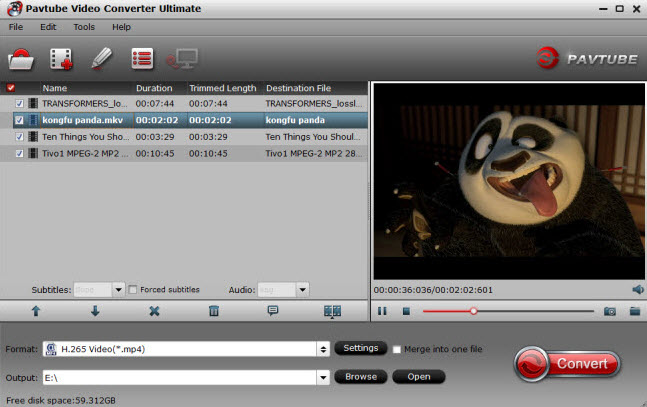
Step 1: Add video files to the program.

Launch the program, click the "Folder" or "Video" icon to load source video movies from your local computer to the program.


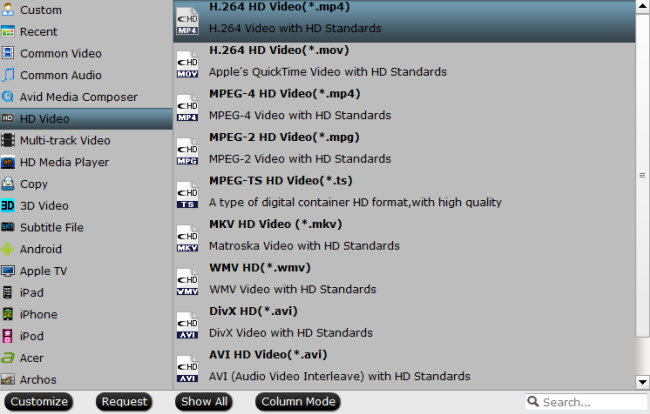
Step 2: Define output file format.

Click "Format" icon, go to select "HD Video" > "H.264 HD Video(*.mp4)". as your desired output file format for Galaxy Tab E Nook.


Step 3: Change output profile parameters.

Open "Profile Settings" window, here you can easily change output video codec, size, bit rate and frame rate, audio codec, sample rate, bit rate and channels.

Step 4: Start any video to Galaxy Tab E Nook conversion process.

Press the right-bottom "Convert" button, you will start the conversion process by converting any video to Galaxy Tab E Nook playable formats.


More

How To Install And Connect Your Galaxy Tab To A Mac Computer Using Mac Kies
Rip the Audio Tracks from Blu-ray discs to FLAC/WAV for Media Player
MOV To IPad: Convert MOV Files To IPad Pro On Mac
Best way to watch MKV Blu-ray rips from PC to TV
Rip 3D Blu-rays to Plex Server for playback with 5.1 channel on TV via Raspberry Pi
Digitize your Blu-ray/DVD movies for playing on Amazon Fire TV
Google Nexus 7 Column - Best Solutions for Mobile Devices


Src
Let's Enjoy Movies/Songs on Galaxy Tab E Nook

2015/12/30

Up to 55% Discount for Top-selling Blu-ray/DVD rippers, Video Editor

Want to get a (HD/4K) Video Converter with only $9.9? Want to get a Blu-ray/DVD tool with up to 50% coupons? Pavtube Facebook Christmas Lowest Promotion is providing an absolute surprise for you! Here you can find out the best deals. 


The discount offering is to show gratitude to valued customers and potential users of Pavtube software, so we Roll out Christmas Sales with 50% ~ 55% Discount for top-selling Blu-ray/DVD rippers, Video Editor andOnly $9.9 Video converters as well as $9.9 DVD Creator for Windows/Mac users, which can help you move favorite Blu-ray/DVD movies or convert digital videos to any home devices and edit & burn videos to DVD for home use! Pavtube products can also assist you to creat special timeless memories for this year's Christmas. 

50% ~ 55% Discount for top-selling Blu-ray/DVD rippers, Video Editor: 

Top 1. 55% OFF Media Magician for Windows/Mac 


Learn more about the software 

Top 2. 50% OFF Video Converter Ultimate for Windows/Mac 


Learn more about the software 

Top 3. 50% OFF ByteCopy for Windows/Mac 


Learn more about the software 

Top 4. 50% OFF BDMagic for Windows/Mac 


Learn more about the software 

Top 5. 50% OFF DVDAid for Windows/Mac 


Learn more about the software 

Only $9.9 Video converters and $9.9 DVD Creator - Up to 78% Coupons: 

Top 1. $ 9.9 Video Converter for Windows/Mac 


Learn more about the software 

Top 2. $ 9.9 HD Video Converter for Windows/Mac 


Learn more about the software 

Top 3. $ 9.9 DVD Creator for Windows/Mac 


Learn more about the software 

Top 4. $ 9.9 MXF Converter for Windows/Mac 


Learn more about the software 

Top 5. $ 9.9 MTS/M2TS Converter for Windows/Mac 


Learn more about the software 

Top 6. $ 9.9 MXF MultiMixer / iMixMXF 


Learn more about the software 

Top 7. $ 9.9 MKV Converter for Windows/Mac 


Learn more about the software 

Top 8. $ 9.9 FLV/F4V Converter for Windows/Mac 


Learn more about the software 

What can Pavtube do? 

1) 1:1 Backup Blu-ray/DVD without region code or protection limit in two clicks. 

2) Rip Blu-ray/DVD into H.265/HEVC, M3U8, MP4, Apple ProRes, DNxHD, MOV, M4V, MOV, MKV, AVI, Xvid, Divx, VOB, MPEG-2, SWF, FLV... for playback on smartphone, tablet, TV set, HD media player, streaming server, Hard drive, Game console, or edit in Final Cut Pro, iMovie, Adobe Premiere Pro, Avid Media Composer, etc. 

3) Edit and Convert Canon/Sony/Panasonic/GoPro/Samsung/Nikon/JVC/Blackmagic/Red One shooted H.265, XAVC, XAVC S/L, MXF, MOV, AVCHD, AVI, MP4, VOB footages into common video formats, so you can watch or edit them on PC/Mac. 

4) Help you Burn DVD folder/ISO image/various video formats to DVD on Windows/Mac. 

More Christmas Topiscs 

1. Watch Christmas Movies on iPad Pro: A comprehensive solution are offered for you to transfer and watch Blu-ray/DVD/Online downloaded Christmas movies on iPad Pro. 

Youtube Video: https://www.youtube.com/watch?v=32X56tzKVQU 

2. Watch Christmas Decoration Video: A comprehensive solution to transfer and play Christmas decoration video on computer, mobile devices, game consoles or TV, etc. 

Youtube Video: https://www.youtube.com/watch?v=zekTsVJEJTI 

3. Upload Christmas Video on YouTube: It is likely that you will record all the funny moments happened on Christmas with your HD camera, smartphone or tablet. If you want to upload and share your Christmas video to YouTube, Facebook or Vimeo, here is a solution. 

4. Burn Christmas Video to DVD: Whether the Christmas videos are shot or downloaded, the fact remains that you have to use a high quality player preferably a DVD player so you comfortably sit and watch your awesome Christmas videos with your loved ones. For quality viewing, you have to burn Christmas videos to DVD. 

5. Stream Christmas Movies on Apple TV 4: For Apple users who have just got a new Apple TV, have you ever imaged of streaming your favorite Christmas movies to Apple TV for watching via large screen HD TV? 

Youtube Video: https://www.youtube.com/watch?v=9tjnWHEB9sI 

6. Edit Christmas Video with FCP: When the shooting stage is over, you can do some professional post production work of your Christmas video footage with FCP or FCP X before sharing them with others. However, you may face the challenge to import and edit Christmas video due to the format incompatible issues, this article will show you how to solve. 

Youtube Video: https://www.youtube.com/watch?v=t5puE0yQeXg 

7. Backup BD/DVD Christmas Movie Collection: If you happen have a lot Christmas movies either classic or newly purchased ones on Blu-ray/DVD disc, it is very essential for you to make a copy or backup of them before your precious Christmas movie collection get scratched, lost, stolen, or otherwise useless. 

Youtube Video: https://www.youtube.com/watch?v=7esfbre816g 
...... 

Thanks for reading about this Pavtube Facebook Christmas promotion idea, we have lots more great articles and videos, check them out! 

Expire on Jan 31, 2016. 

More 
Enjoy Sony HDR-TD10 3D MTS/M2TS on Zeiss VR One with iPhone 6 
iTunes H.265 Solution- Convert H.265 video to iTunes library 
Comprehensive Methods to Rip DVD to VLC 
Backup iTunes Movies to Galaxy S6/S6 Edge for playback 
Play 1080p MKV movie with subtitles on Samsung TV via Plex 
Best 4K UHD Video Converter & Compressor Also a 4K Player 
Watch 3D Blu-ray media with BenQ W1070 DLP projector 
Christmas Sales: 50% OFF Blu-ray/DVD/Video Tools – Pavtube 2015